Prepare it
Make a lesson and add a lesson starter (from the board, or the Lesson starters page on this site), a worksheet or an AI lesson. Rename it, for example Maths with Ava. It waits on your lessons page.
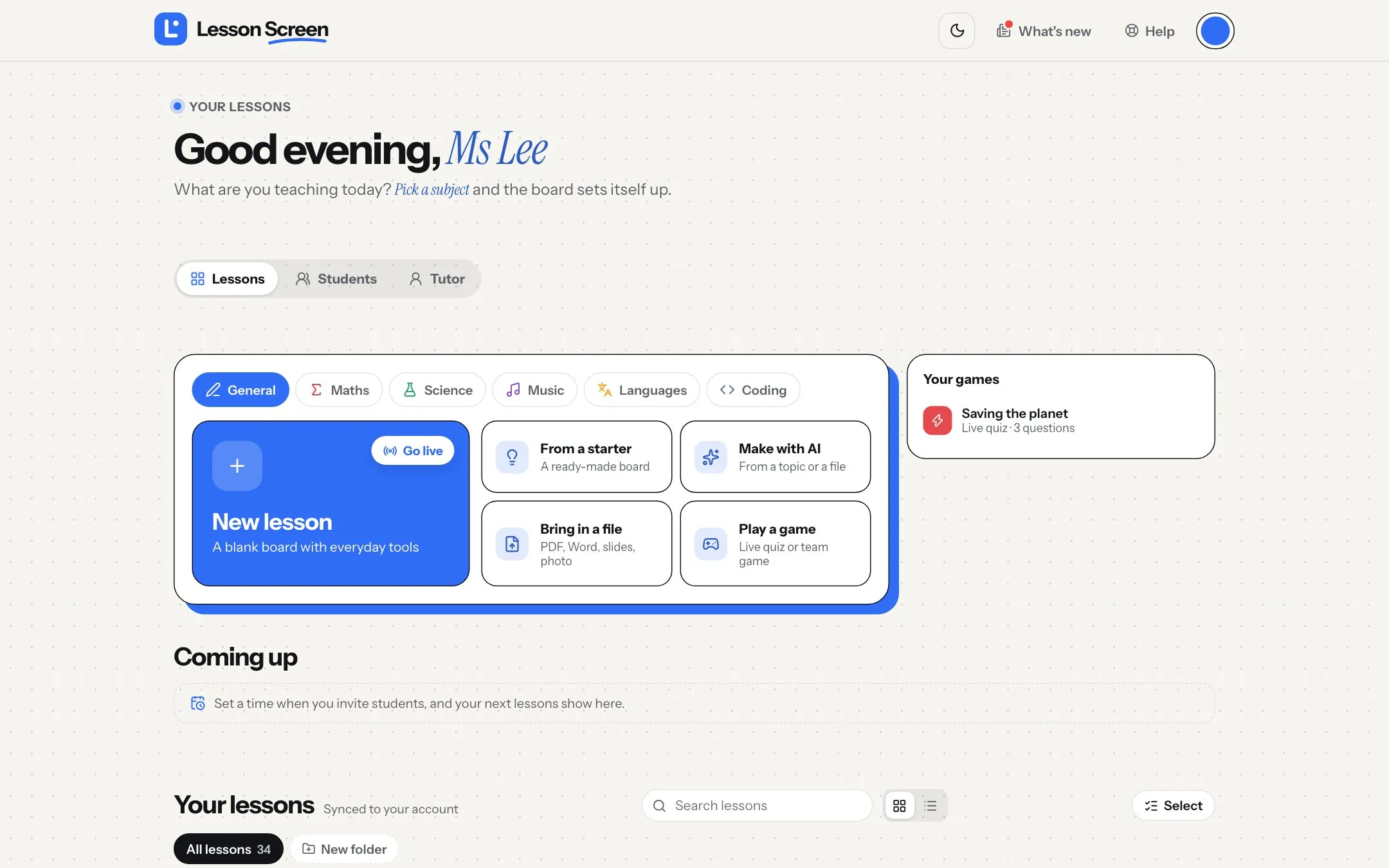
Start it live
When it is time, open the lesson's menu and choose Go live. It goes live with its link copied.
Reuse a lesson
Choose Duplicate to copy a lesson with all its boards, ready to change for next week or another student.
Keep lessons in folders
On your lessons page, press New folder and give it a name. Drag a lesson onto a folder, or choose Move to folder in the lesson's menu. On a phone, hold a lesson card and drop it on a folder. Delete folder keeps the lessons that were in it.
Save a board to use again
Open a tab's menu (the arrow by its name) and choose Save as starter. Give it a name and pick a folder, like Year 7 or Fractions. Next time, press + and choose Lesson starter: your boards are under Saved, in their folders, and each opens as a fresh copy.
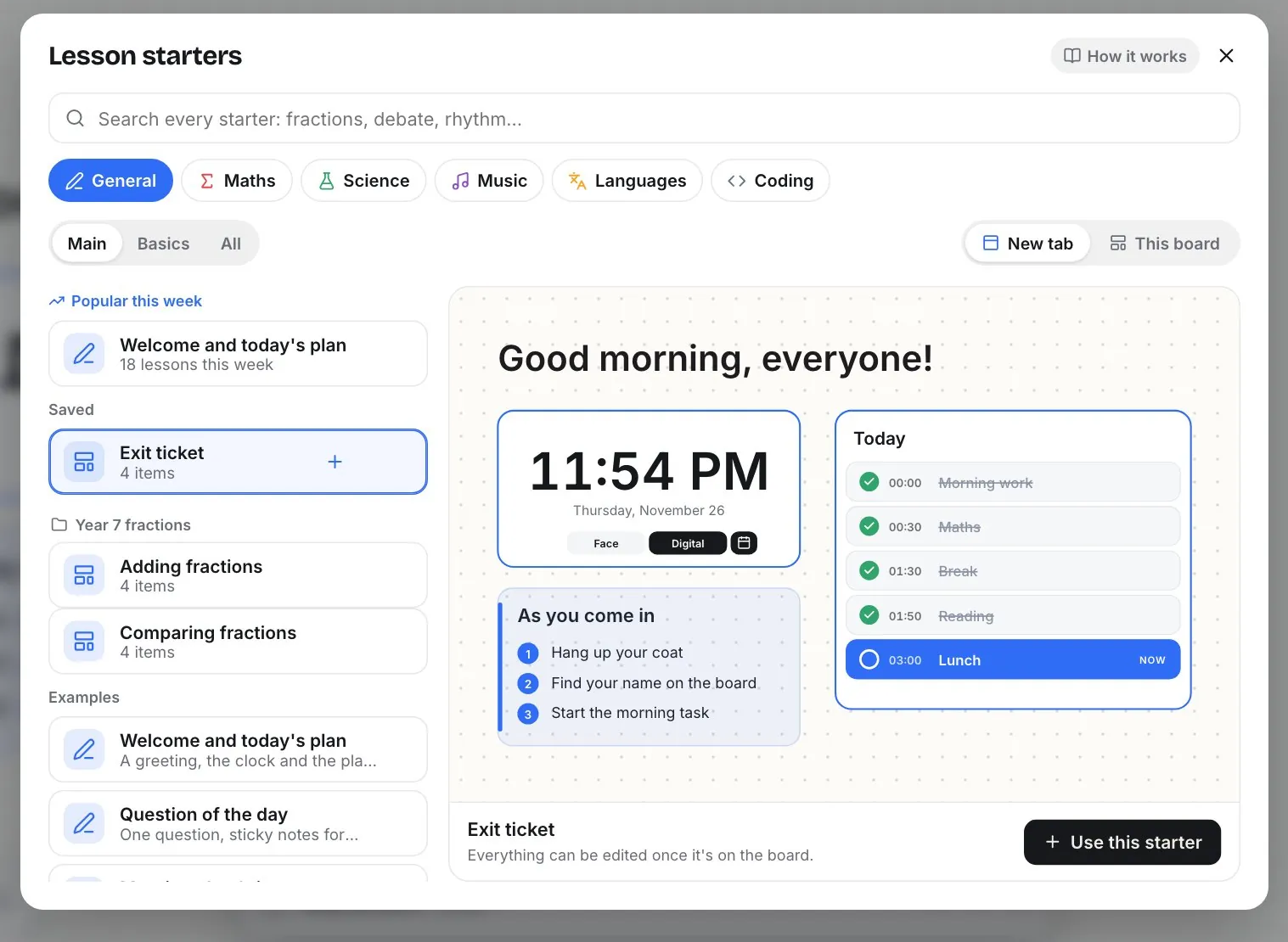
Group your tabs
In a tab's menu choose Group, name the group (Warm-up, Practice, Homework) and tick the tabs that go in it. Tap the group's name to fold it away. Drag a tab onto a group to add it, or drag it out to take it out.
