Choose what to record
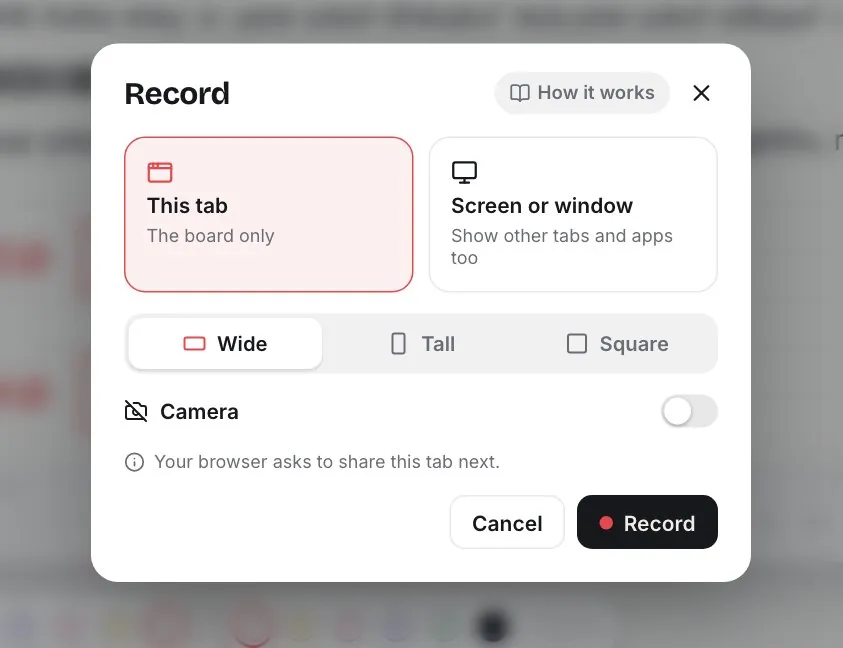
Press the three dots at the top right and choose Record. This tab records the board only. Screen or window records anything you show, other tabs and apps too.
Pick a shape
Choose Wide for a normal video, Tall for a phone video like a reel or short, or Square. The board shows that shape while you record, and Lesson Screen remembers your choice.
Add your camera
Turn on Camera to show yourself in a round bubble, and tap the corner it sits in. Press Record, choose what to share, and allow the microphone and camera.
Teach as usual
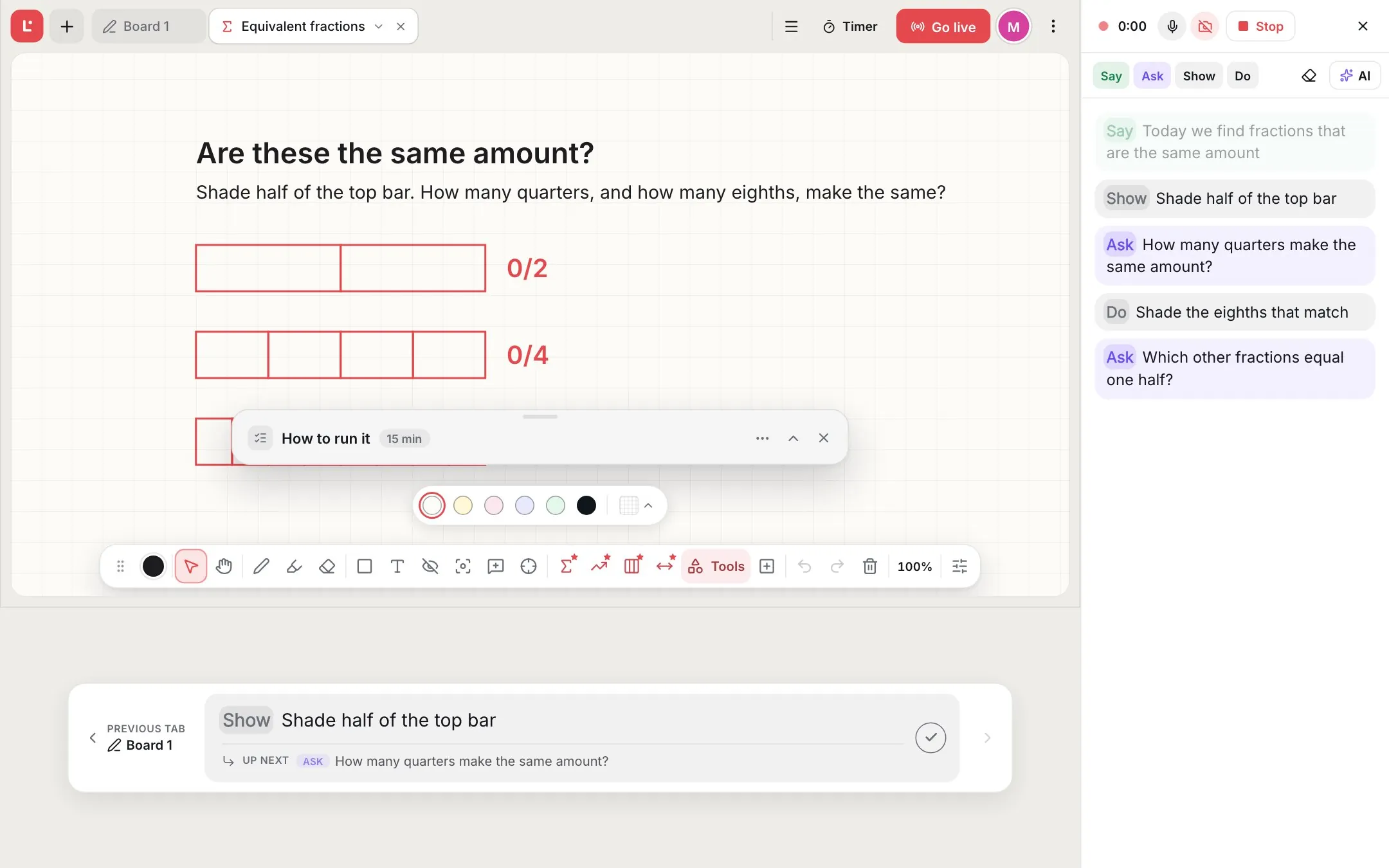
Draw, write, change tabs and talk. A red bar shows the time. Signed in, in Chrome, Edge or Firefox, a recording can run for a whole lesson and is saved online as you go. Otherwise it can be up to ten minutes.
Follow your notes
Open Notes before you start, and they sit beside the board. While you record, the board takes the shape you picked and the bar under it shows the step to say now. Recording This tab in Chrome or Edge leaves your notes and the bar out of the video.
Stop and watch
Press Stop. The recording opens to watch at 1x, 1.5x or 2x. Give it a name.
Send a link
Press Get link. The video is kept online and its link is copied: send it by message, email or your class page. It opens a page with the video, at 1x, 1.5x or 2x, and students and parents need no account. You need to be signed in.
Keep it
Download saves it as a video file. In a lesson, Add to lesson notes puts it in a tab for everyone, and students and parents can watch it again in the lesson notes. Attach to homework shows it on the students' homework.
Students see it
While you record in a live lesson, everyone in it sees a red Recording sign at the top of the board. If you end the lesson while recording, the recording stops and opens, so you can still keep it.
If the page closes
A recording saved as you go isn't lost. Open the lesson again and choose Open on the notice at the top to get back what was recorded, all but the last few seconds.
Use your own storage
Press Drive or YouTube, then paste a link to the video on Google Drive, Dropbox, OneDrive or YouTube. Set it so anyone with the link can watch. It plays in the lesson and the homework and uses none of your storage.
Your storage
Recordings you add to a lesson or homework, or send with Get link, use your storage; Download and Drive or YouTube links don't. In Storage, each recording shows the lesson it's in. Delete one to free space, and that lesson shows that the file was removed.
Students record too
When a lesson has homework, students can record their own explanation from the homework at the top of their board. It goes with their homework for you to watch.
Which devices
Record on a computer. Phones and tablets can watch recordings but not make them.