Ask a quick check
In Tools, choose Quick check. Pick A B C D, Yes or No, True or False, or How sure, and ask.
Students answer
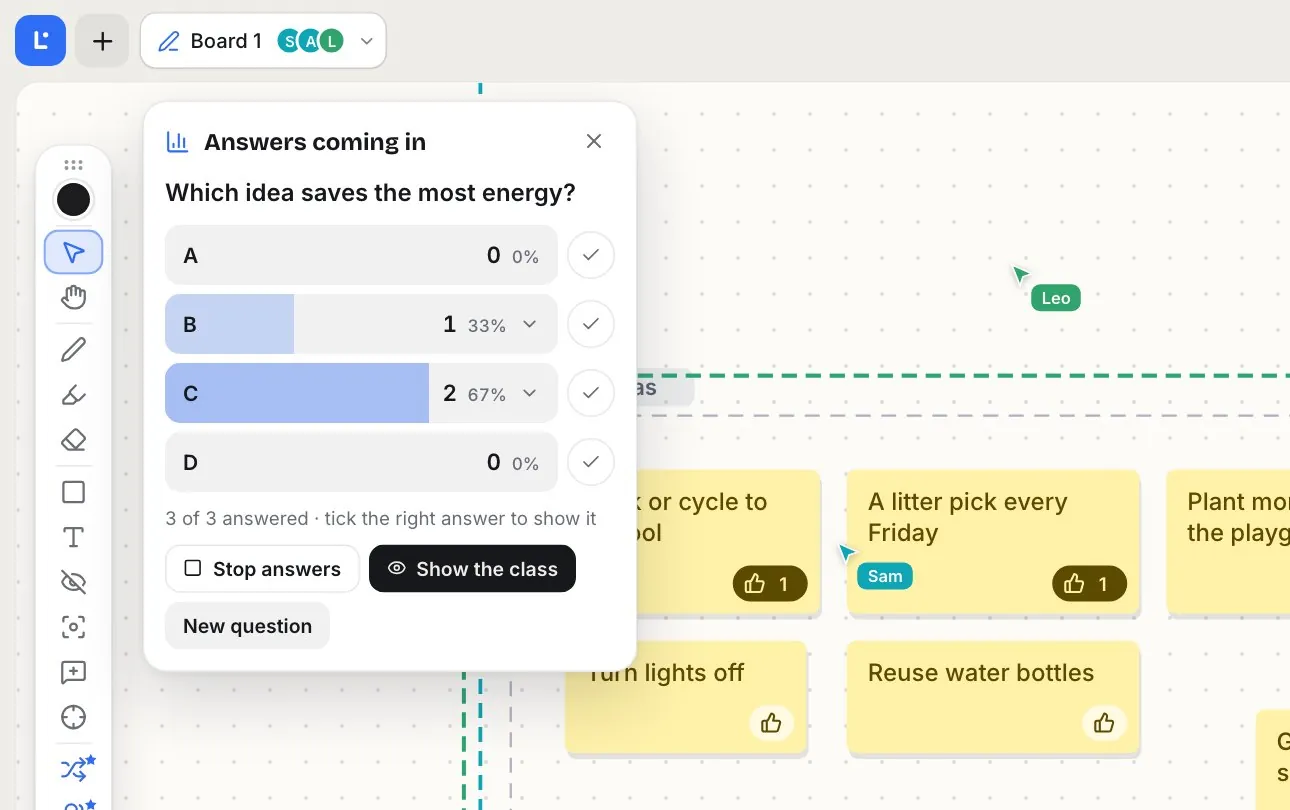
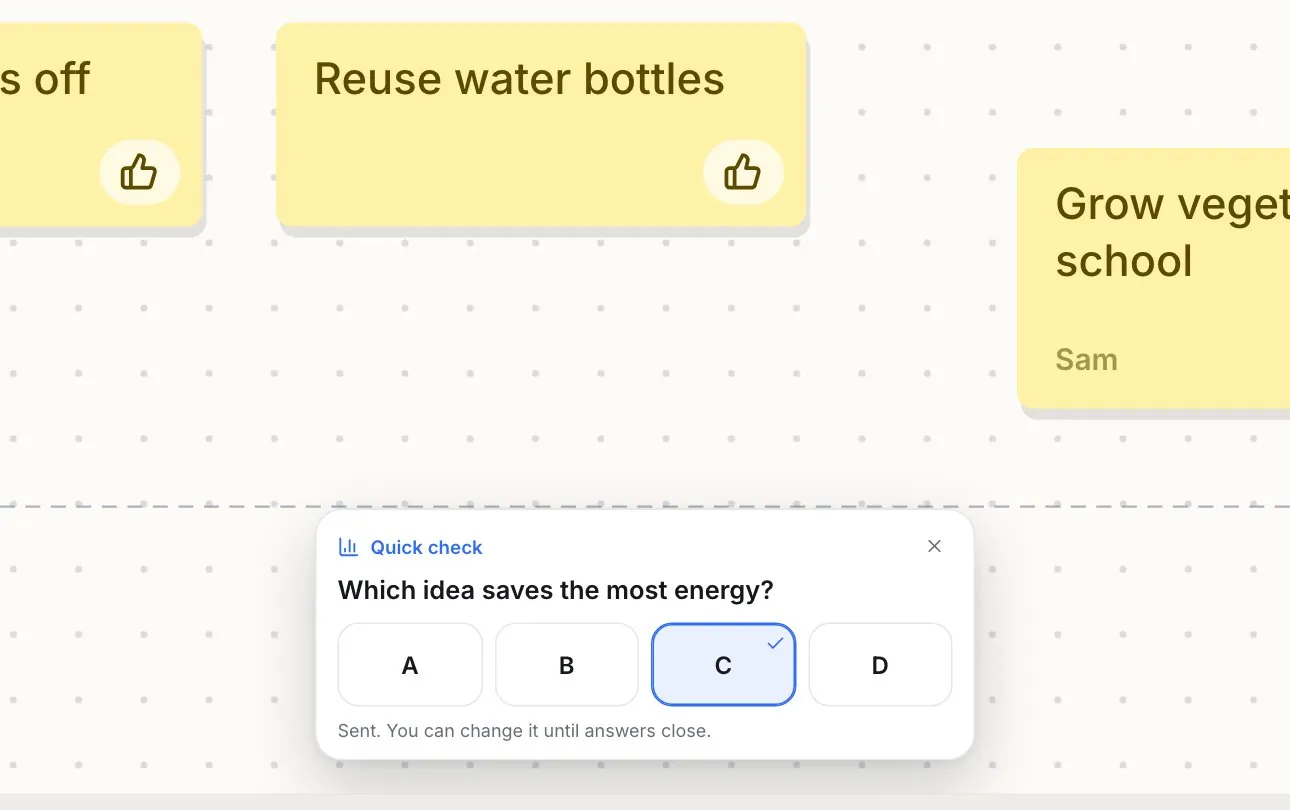
Each student answers on their own screen. You see the results as they come in, with names. Tick the right answer, then Show the class: each student sees whether they got it.
Tap the picture
In Quick check, choose Tap the picture. It uses the picture selected on your board, or press Choose picture. Each student taps a spot on their own screen, and you see every spot with its name. Press Mark the answer and tap the right spot, then Show the class: everyone sees all the spots, without names, and whether theirs was close.
Answer boxes that mark themselves
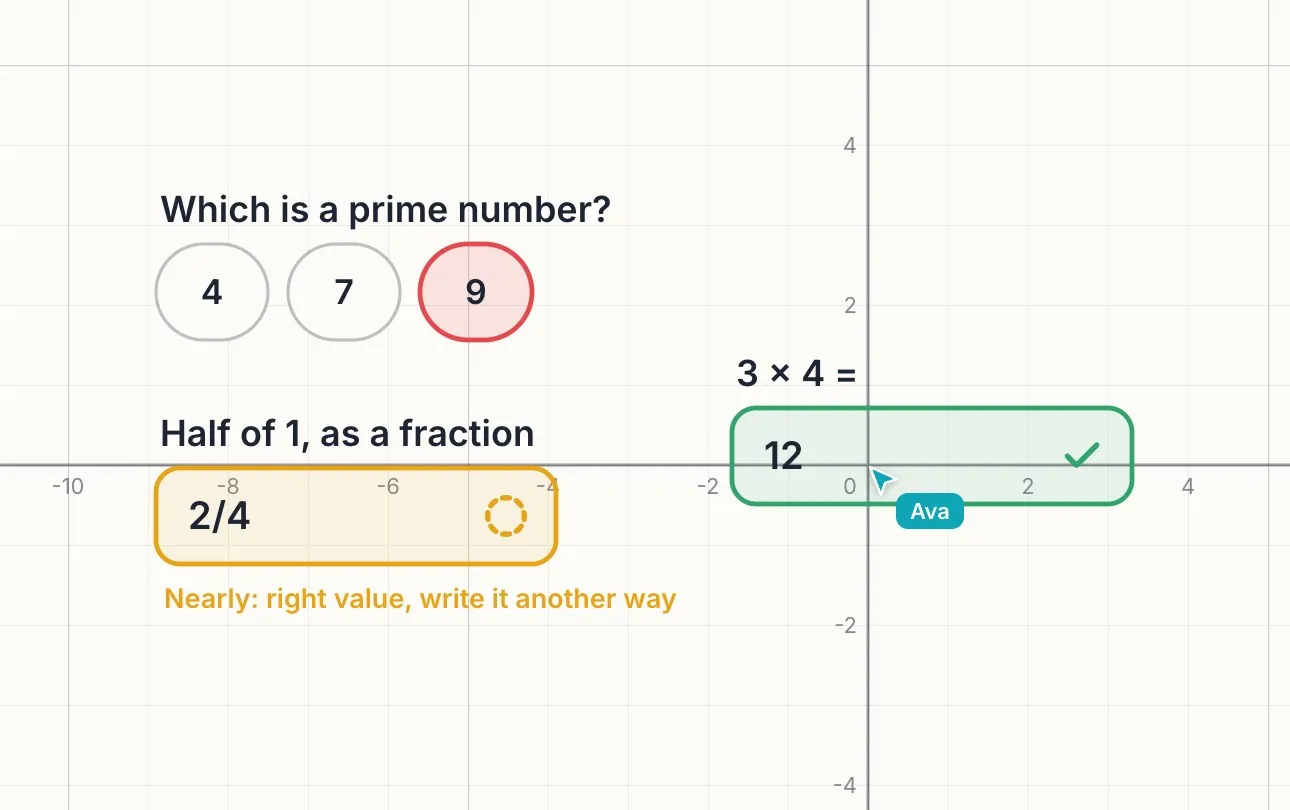
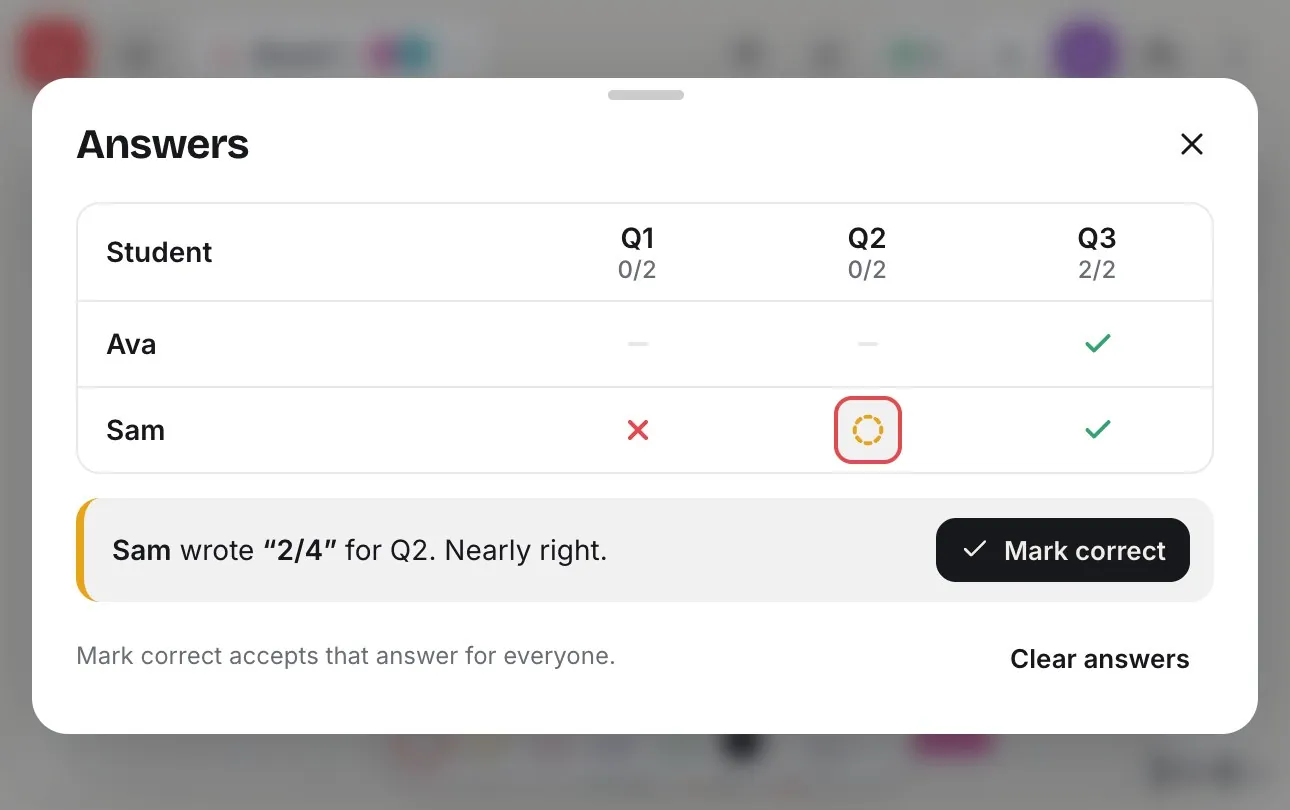
In Tools, choose Answer box and type the right answer: a number, words, a fraction or a choice. Put boxes beside questions on any board or PDF. Students tap a box, type, and see a tick or a cross at once. Amber means nearly right, like 2/4 for 1/2 or one letter out.
See every answer
Under each box you see how many got it right. Tap the count for a table of every student and every question, then tap an answer to see it. Mark correct accepts it for everyone. Answers stay after the lesson, so boxes work for homework too.
How's it going?
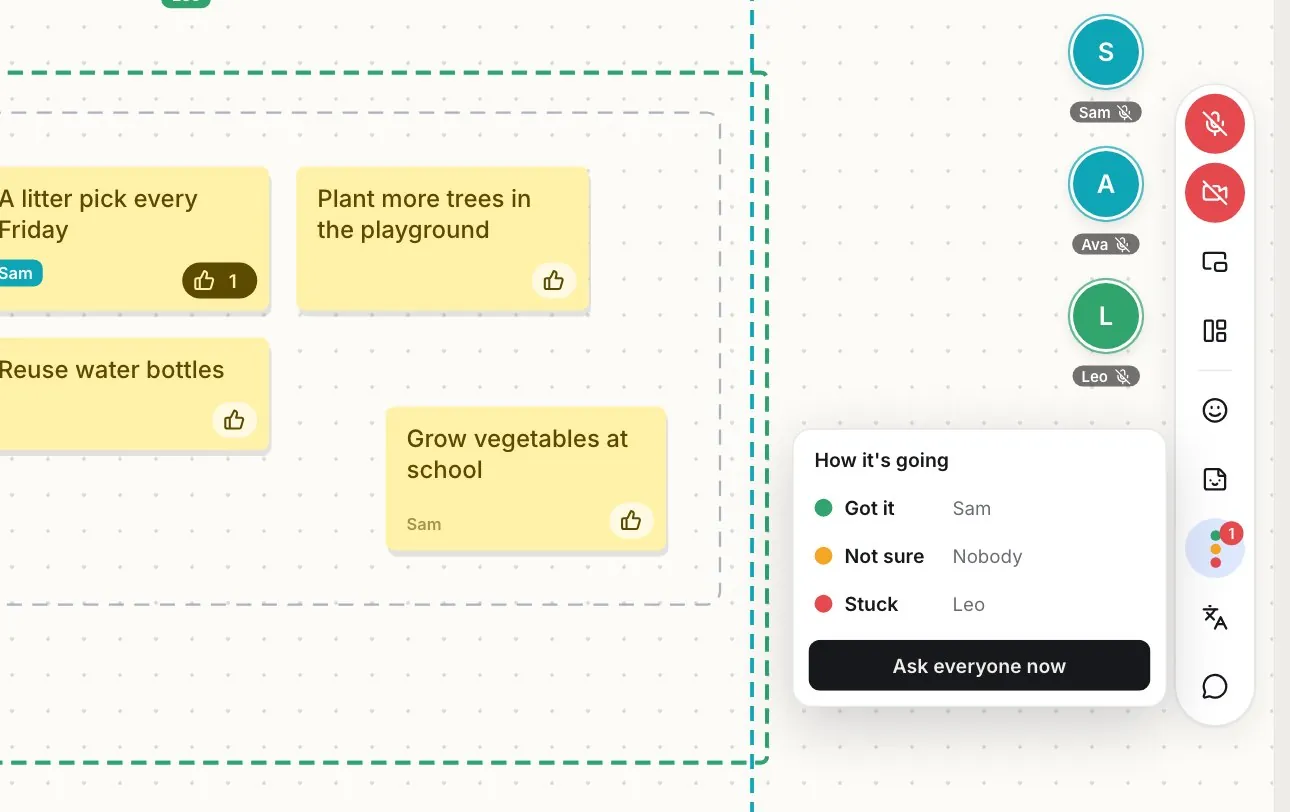
Students can show green, amber or red at any time, and only you see it. You hear a soft ding and see who chose what beside the button. Ask everyone at once from the same button on the call bar.
See everyone at once
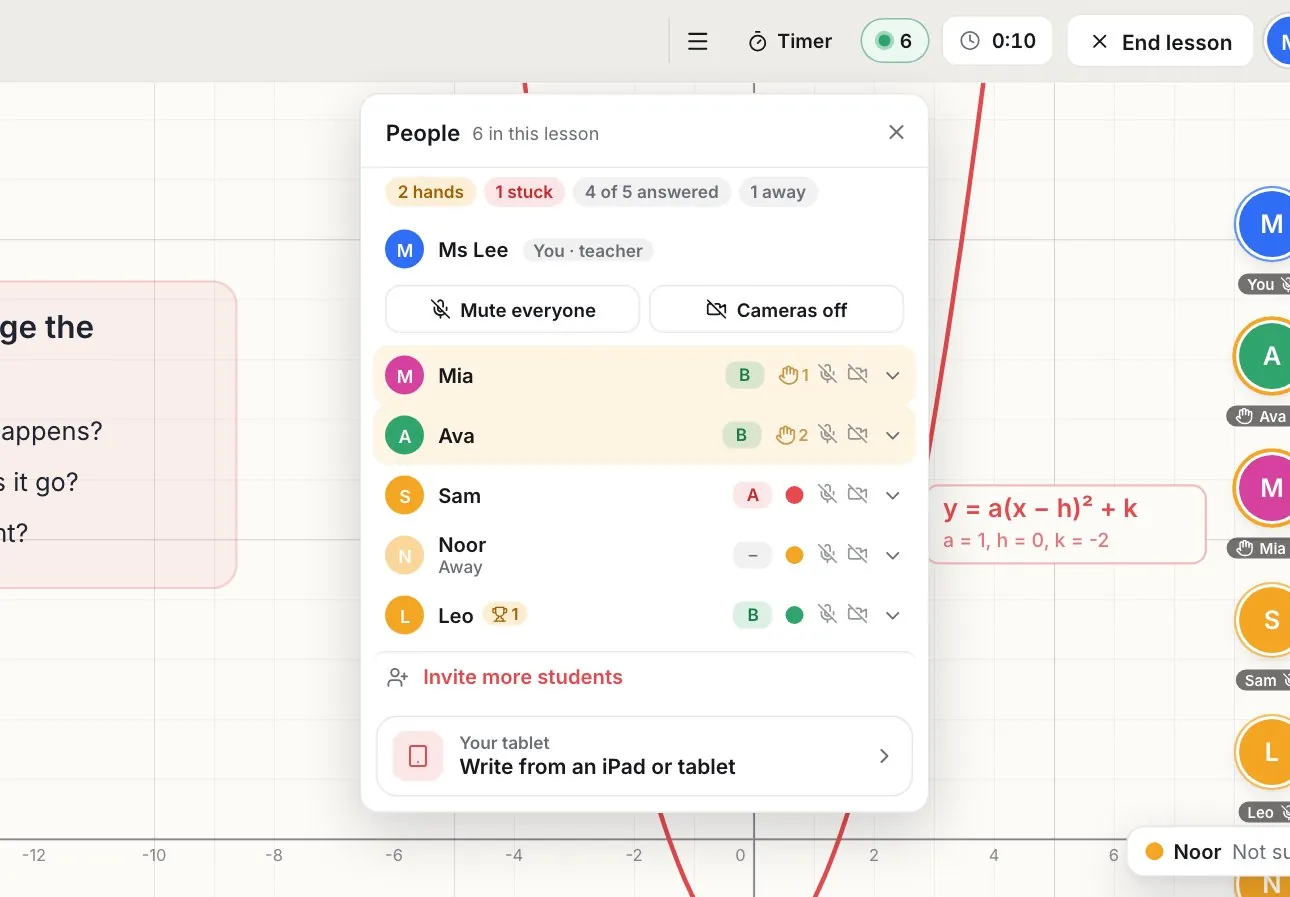
Open the people list (the number at the top). Raised hands come first, then anyone stuck, with each student's answer and whether they have switched to another app.