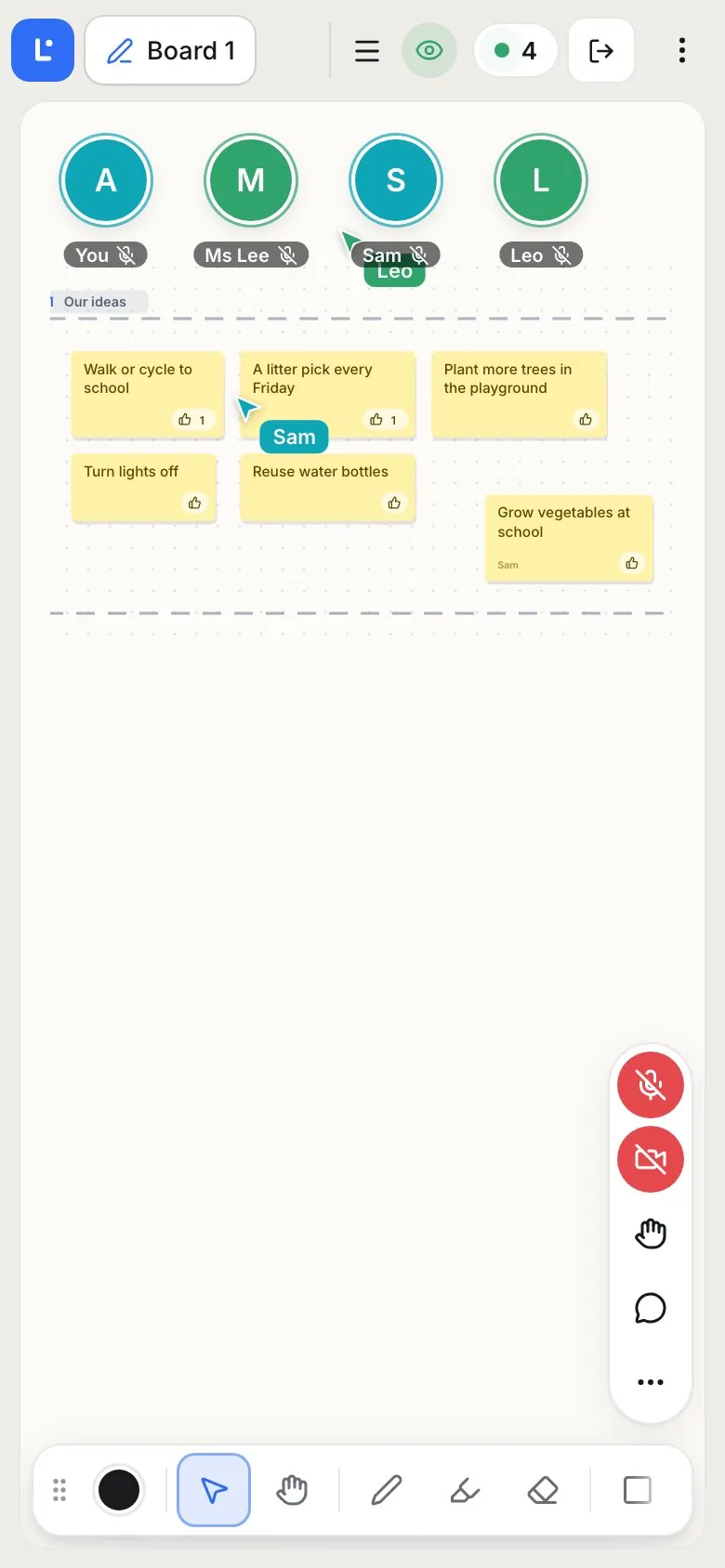
Frame each step
Press Add to board, then Frame. It wraps what is on screen, or just what you selected, and you name the step. With nothing new on screen you get an empty frame beside the last one, ready for the next step. A frame moves with what is inside it.
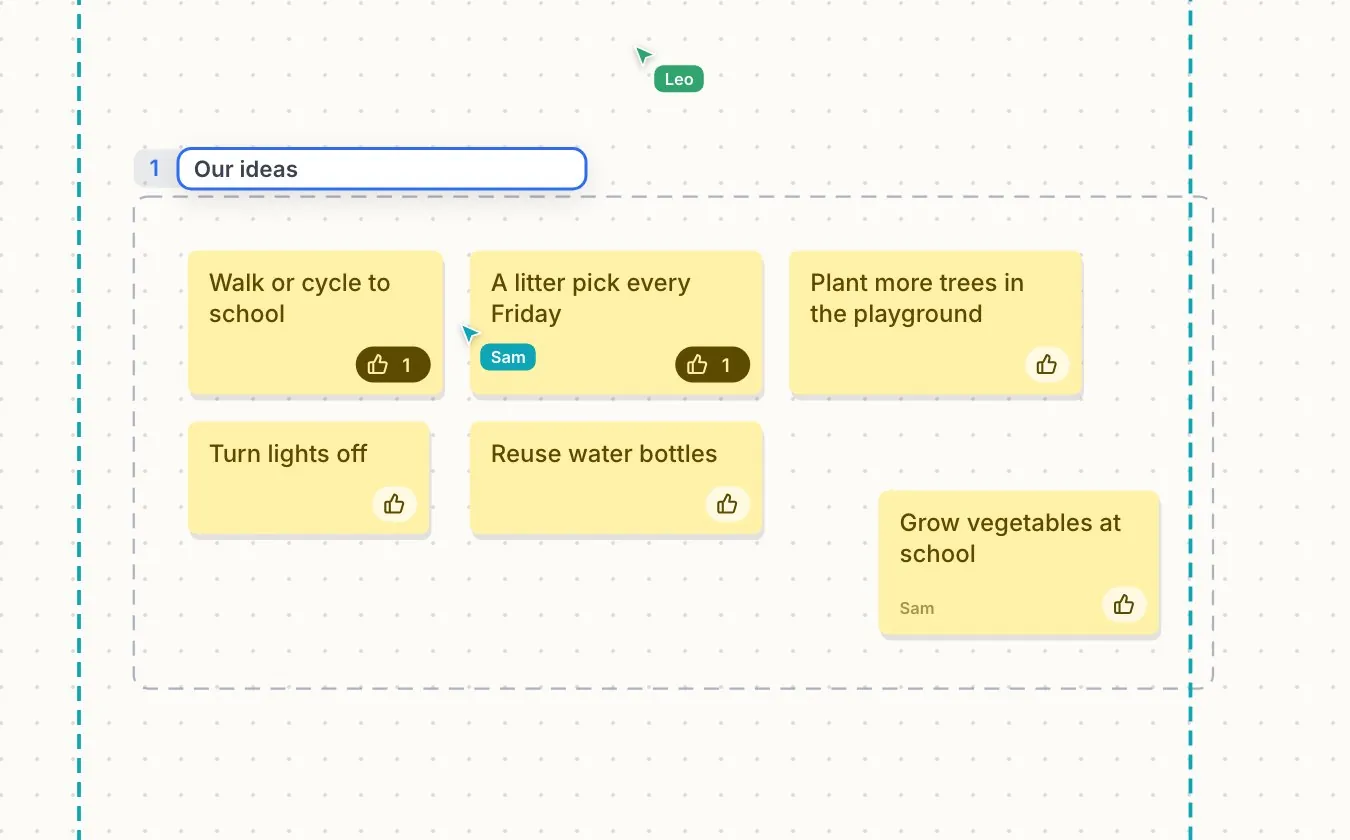
Change the order
Select a frame and choose Earlier step or Later step to move it. Fit to content tidies the frame around what is inside it.
Present
Press Present at the top right. Lesson Screen glides to each frame in turn. Use the arrows, or the arrow keys. Done brings you back to where you were.
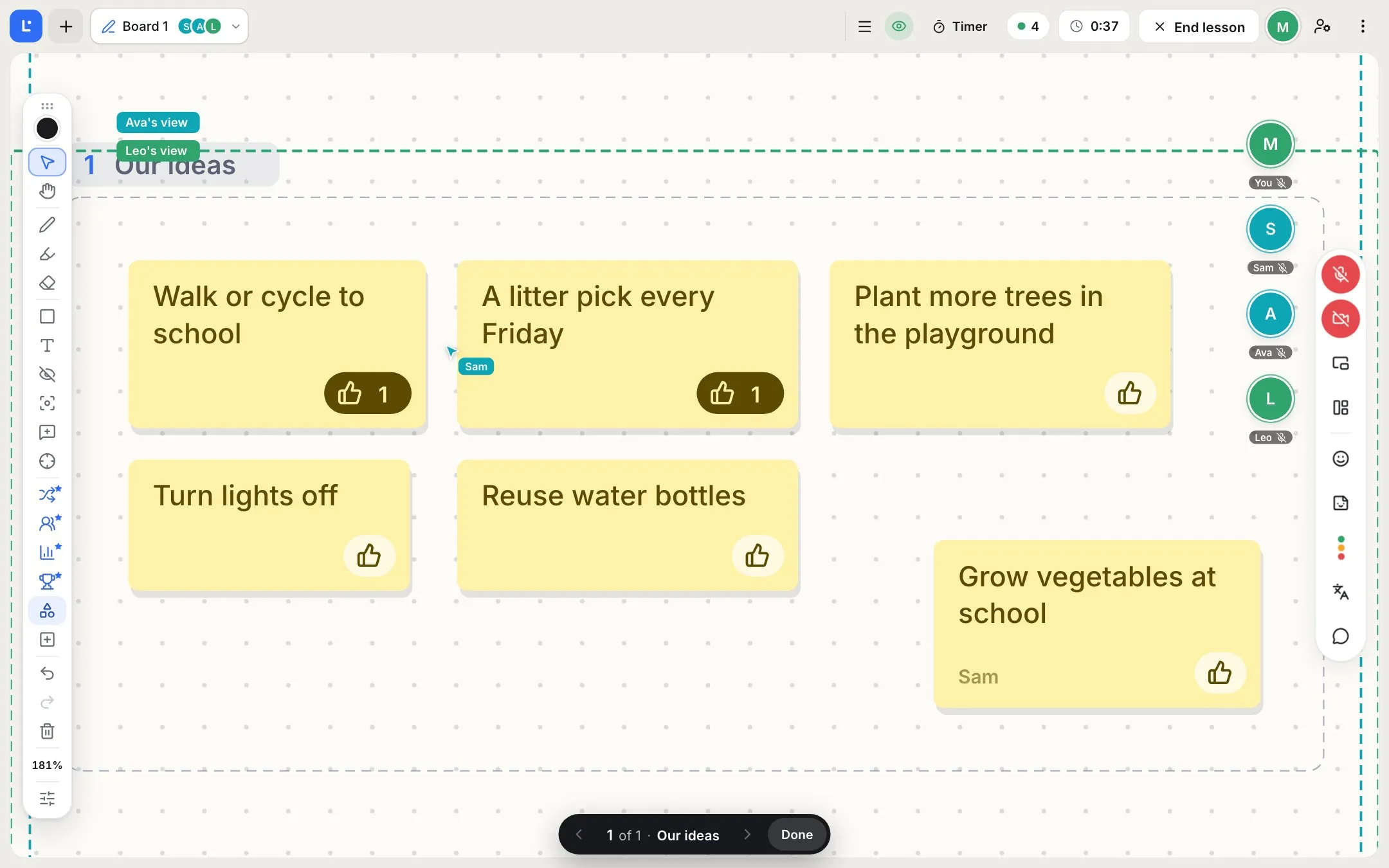
Start from any step
Select a frame and choose Present from here to begin there, for example after a break.
Hide what's coming
While presenting, press the eye at the left of the bar. What's in the steps still to come stays off the board until you reach them, on every student's screen too. Press it again to show everything.
Or use numbered steps
Press Add to board, then Numbered steps, and click to place 1, 2, 3. Each step is the number and the things nearest it. Select a number to see its things outlined, and move something nearer another number to change its step.
Everyone follows
In a live lesson every student's screen follows along and fits each frame to their device.