Lead the class
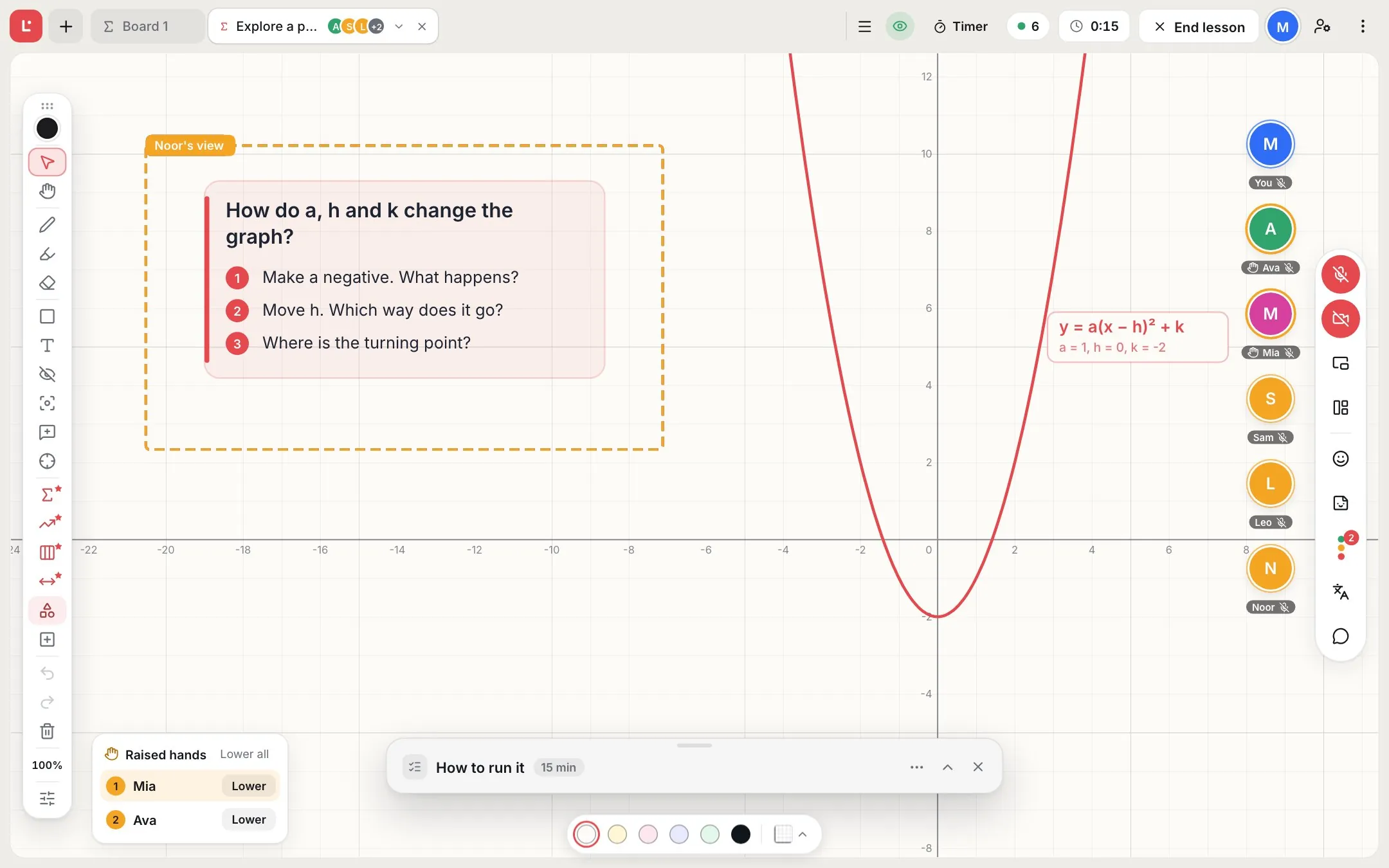
In Class settings (the person with a gear, top right), turn on Lead the class. Every student goes to your tab and sees what you see, scrolling with you through a doc, until you press Stop. Students see Following and your name at the top.
Spotlight a student
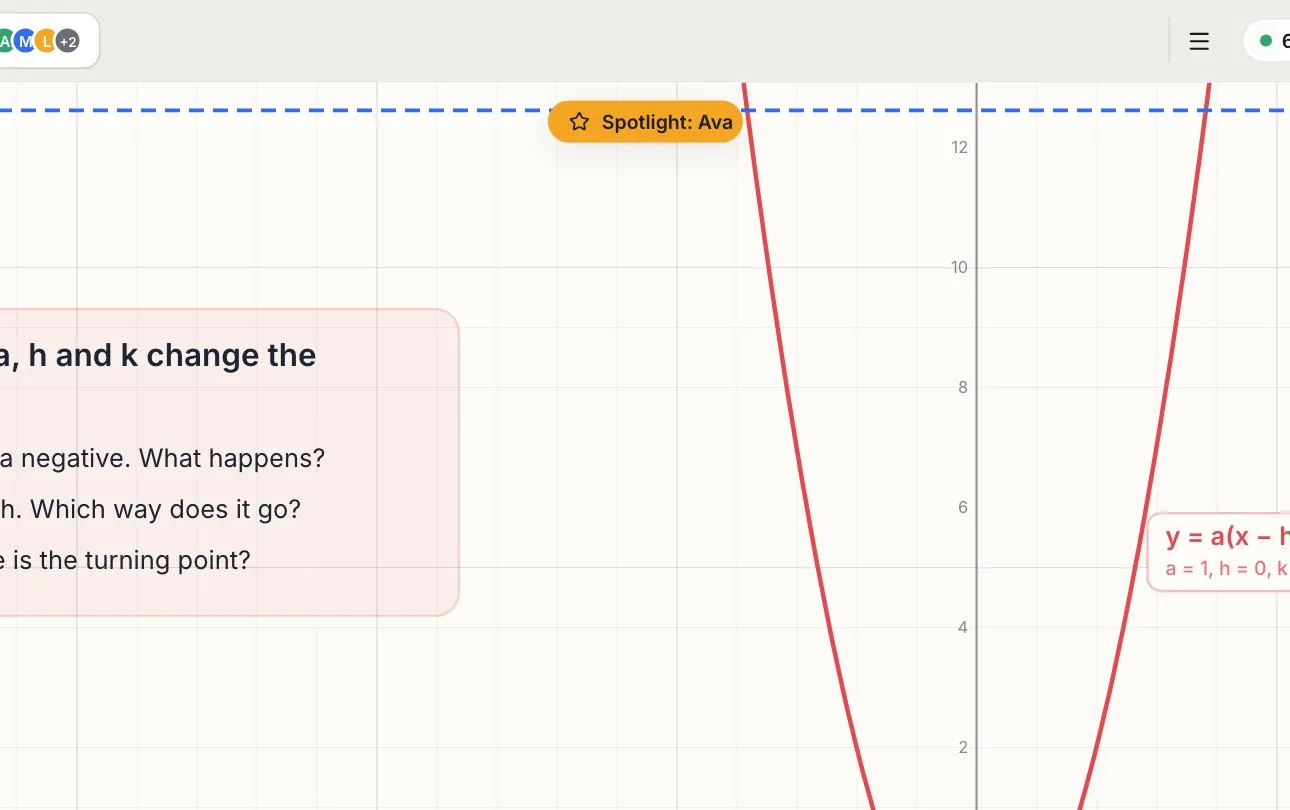
Open the people list, tap a student's name, then Spotlight. Everyone sees that student large until you press Stop.
See several screens at once
When two or more students share their screen, press View all to see them side by side. Click one to see it full size.
Give a trophy
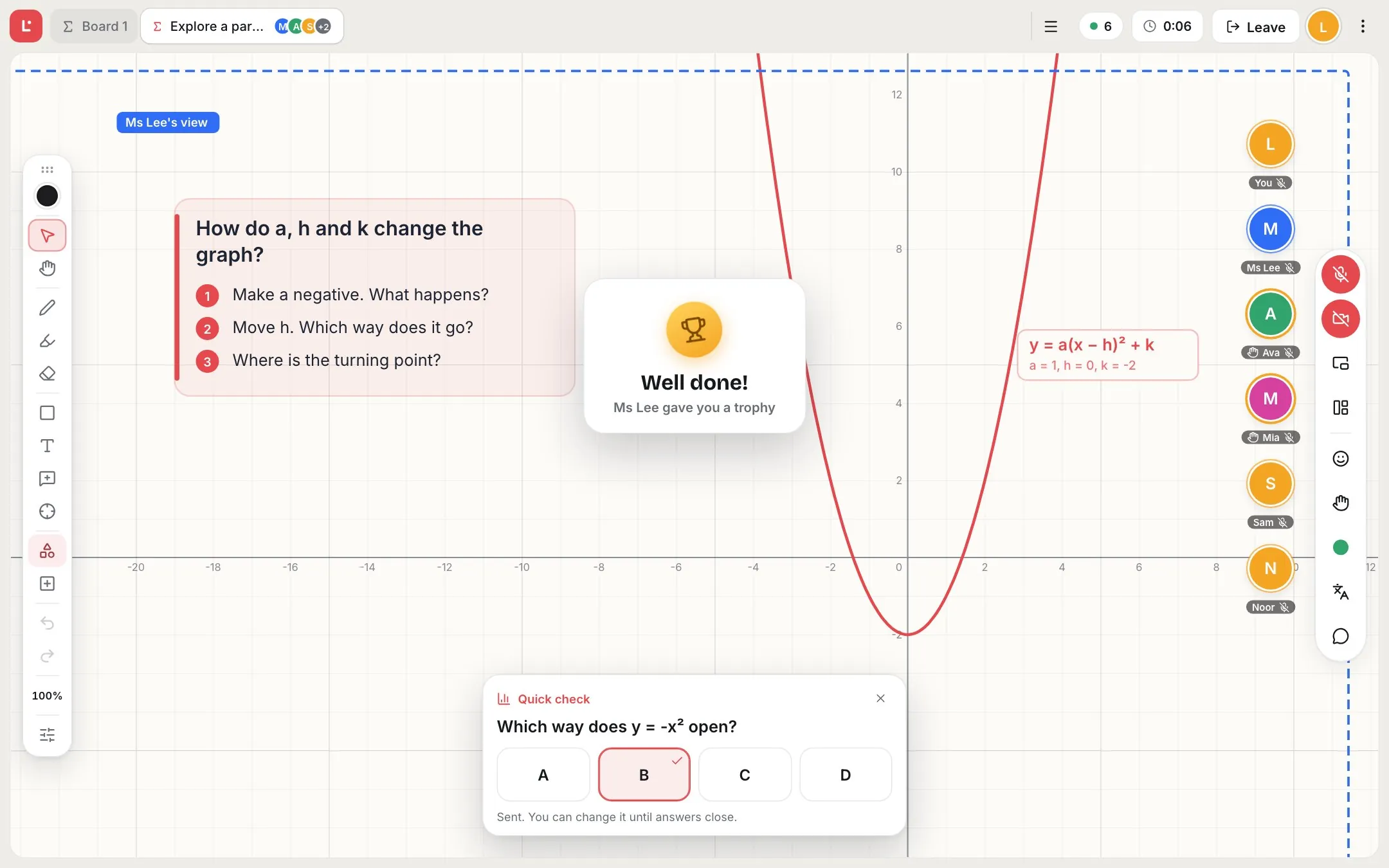
Tap a student's name in the people list, then Give trophy. The whole class sees it, and the count stays for the rest of the lesson.
Manage one student
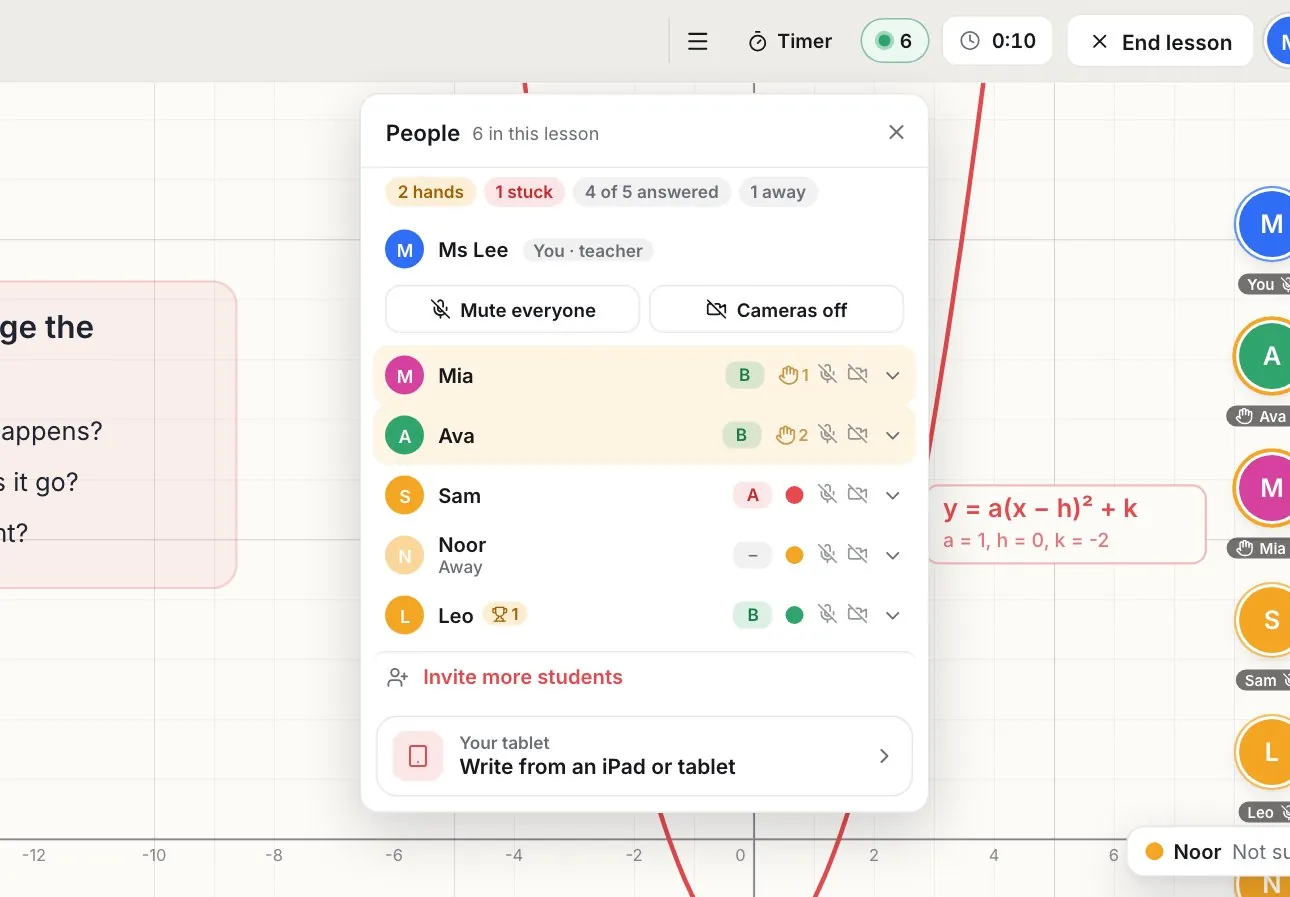
Tap a student's name in the people list to mute them, turn their camera off, message them or change what they alone can do. A student whose background noise comes through shows Noisy mic. A switch you changed for them shows in bold, and Reset gives them the class settings again.
Quiet the whole class
At the top of the people list, Mute everyone and Cameras off turn off every student's microphone or camera. Students can turn theirs on again. To keep them off, turn off Microphone or Camera in Class settings.
See your whole class
The people list puts raised hands first, in the order they went up, then anyone stuck. It also shows each student's answer and who has switched to another app.