Go live
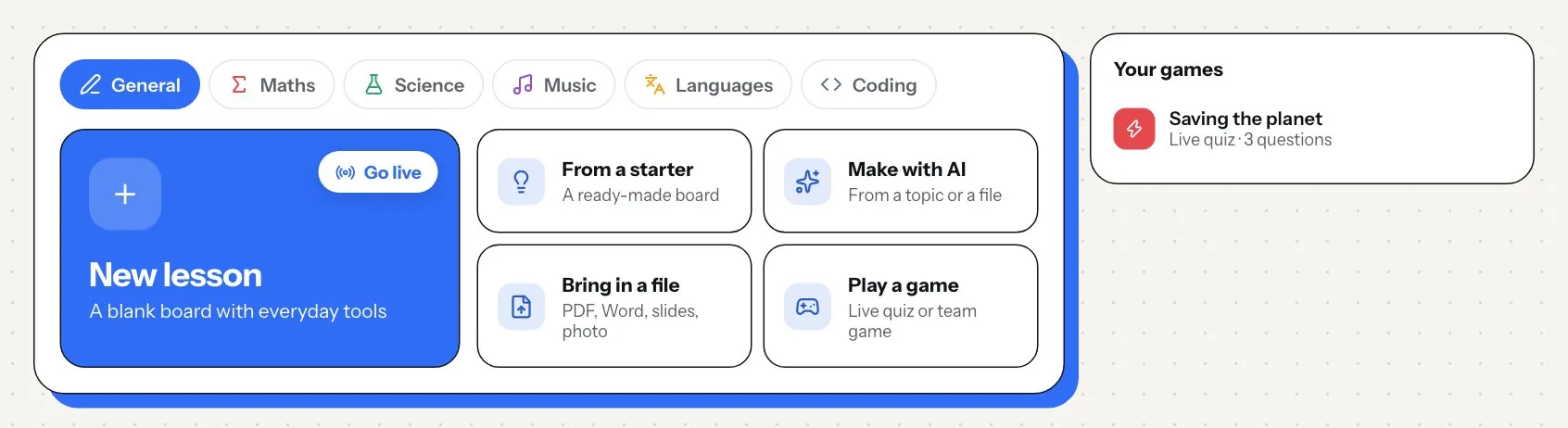
Press Go live at the top of a board, or on your lessons page. The lesson starts and its link is copied, ready to paste to your students. Students never need an account.
Share the link or the code
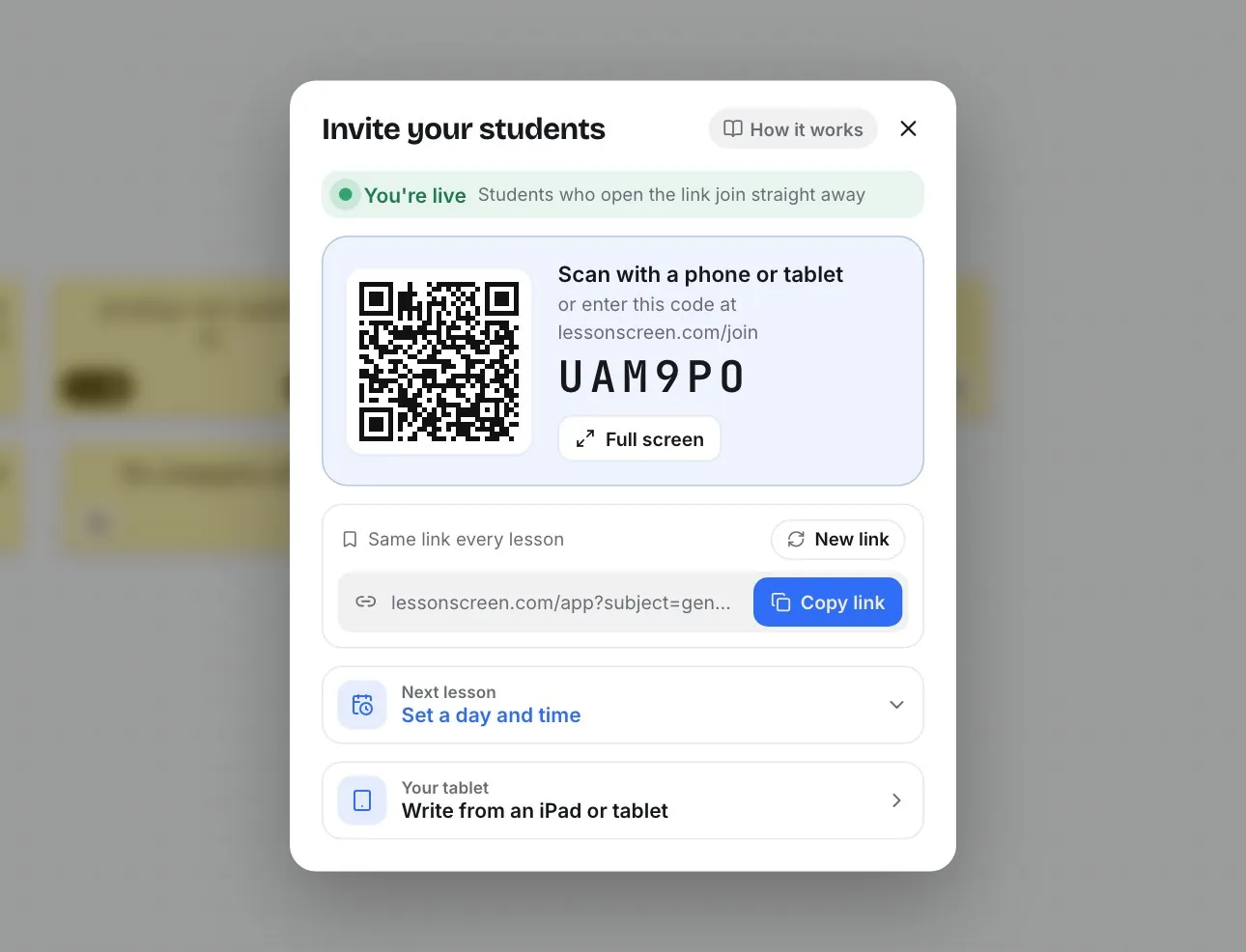
Paste the link, or show the code for students to scan with their camera. Show it big for a whole class. To stop students changing the board, turn off Draw and edit in Class settings. The link stays the same every time you teach this lesson.
Teach together
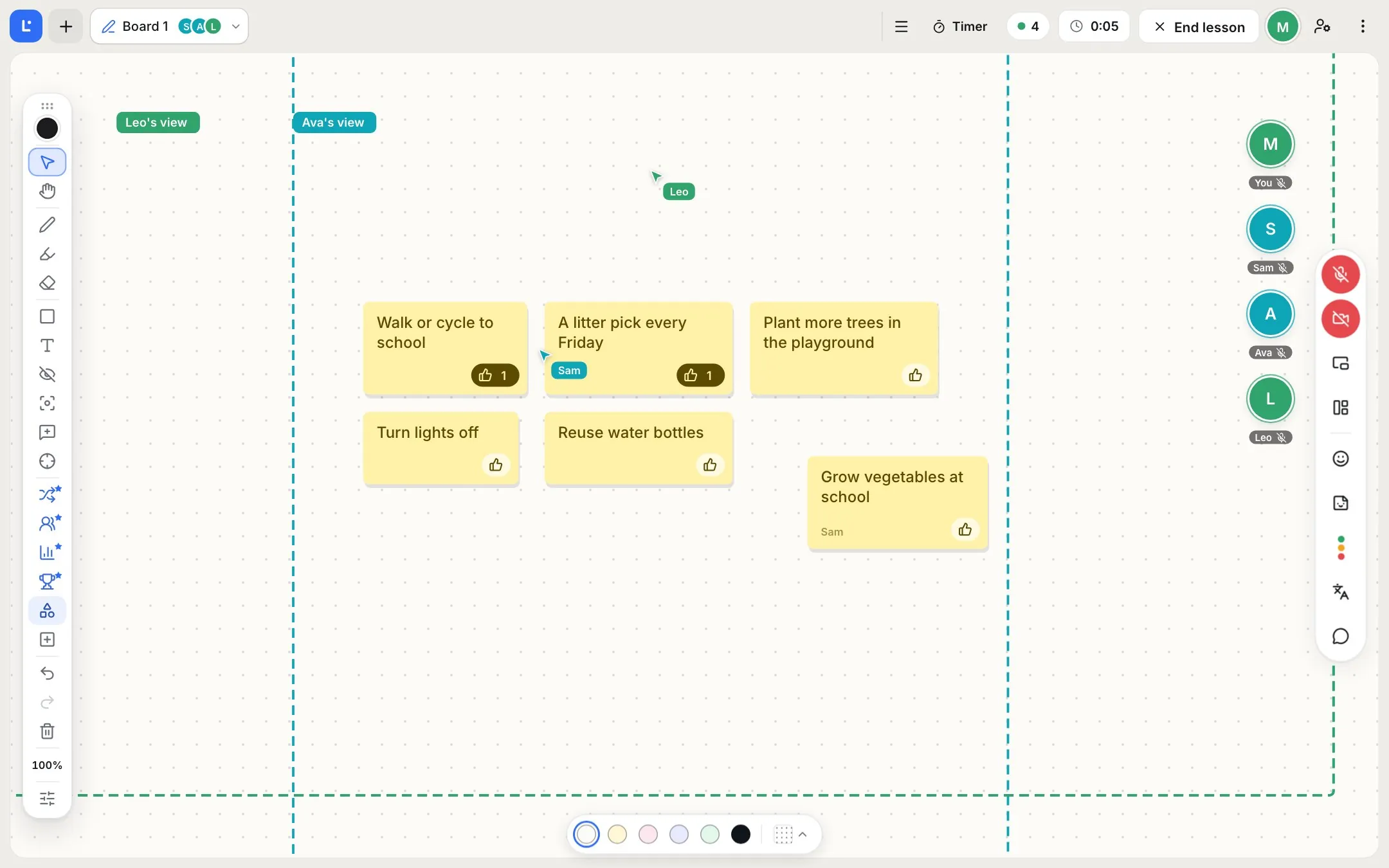
You see everyone's cursor and video. In Class settings (the person with a gear, top right), turn on Lead the class to bring the class to what you are looking at, and choose who can draw, chat or talk. Rude words in the chat, on sticky notes and in names are hidden for everyone. In the people list (the number at the top), Lower hand puts a raised hand down. Remove takes someone out of the lesson, and they can't rejoin from that browser until you press Let back in under Removed. Invite more students shares the link again.
Write from your tablet
Once you are live, press the people count at the top and choose Write from an iPad or tablet, then scan the code with your iPad or tablet's camera. See Write from your iPad or tablet for more. It joins as your pen: it follows the tab you are on, and what you write appears for everyone. It has no camera or mic and students do not see it as a person. You only pair it once: when a lesson ends it waits, and it joins your next lesson by itself when you go live. Use the tablet button at the top to stop it following you, or Disconnect to stop using it.
Arrange the videos
Press Layout in the call bar to put the videos down the side, along the top, or show whoever is talking large. Side puts everyone large in a column beside the board, with the chat under them: pick Grid, List or Focus at its top, and drag its edge to make it wider. S, M and L change the size, and the eye hides the videos.
Send files in the chat
Press the paperclip in the chat to send a picture, a PDF, a Word, Excel or PowerPoint file, an MP3 or a video, up to 80 MB. Sound and video play right in the message, and you can open a video in a tab of its own for the class. Students can send files too when the class settings let them.
End the lesson
End lesson ends it for everyone. Your boards stay on your lessons page, students get the lesson notes with a summary and the chat, plus their own board to keep working on, and the same link opens your next lesson. The chat carries on there too, on any device you sign in on, until you press Clear all. Download it as a text file any time.
After the lesson
The board shows what to do next: see each student's work, set homework, open the lesson report or copy the notes link for your students. Your lessons takes you back to the list.