Press Share
Open the lesson and press Share at the top. You need to be signed in, since the lesson and its links are kept on your account.
Anyone with the link
Choose Can view or Can edit, then press Copy link and send it. Turn it Off and the link stops working straight away.
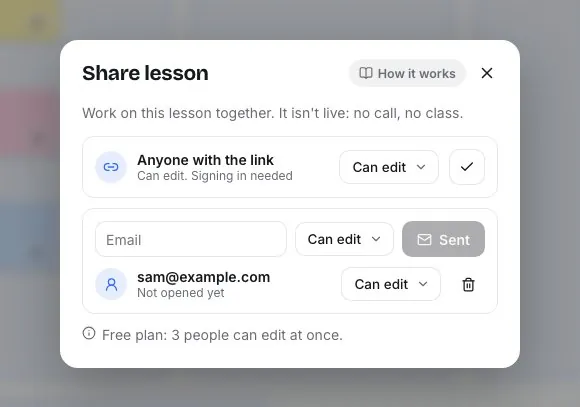
Invite by email
Type an email, choose Can edit or Can view, and press Invite. They get their own link by email. Change what they can do, or remove them, from the list below.
Work on it together
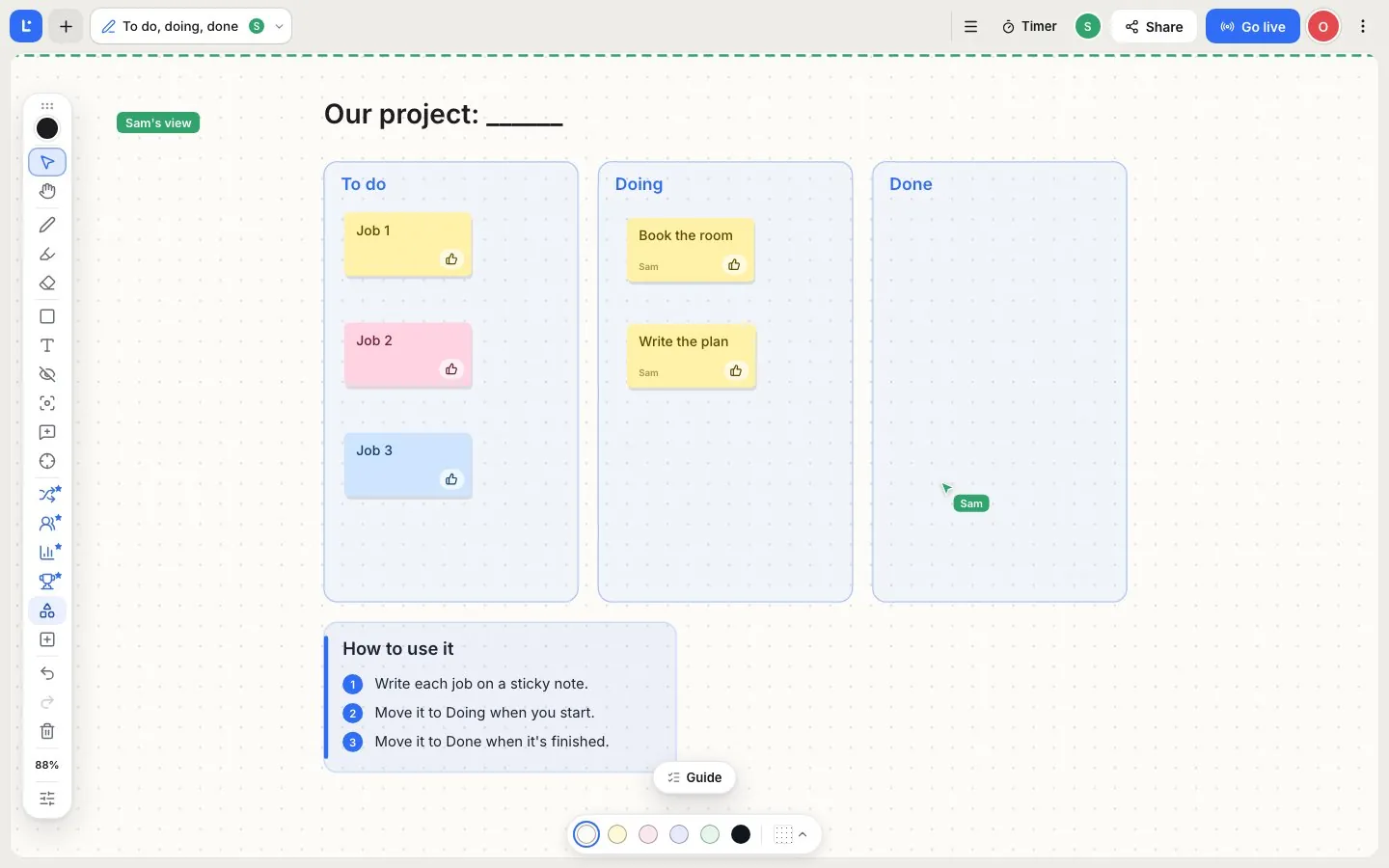
Everyone who has it open sees each change as it is made, with each person's pointer and face at the top. There is no call and no class, and it doesn't count toward your live hours.
Who can do what
Editors need to sign in. They draw, type and add tabs. Viewers only look. Only you can go live, end a lesson, change class settings or share it again.
Shared with me
A lesson shared with you shows under Shared with me on Your lessons, on any device you sign in on. Press the cross to take it off your list.
How many at once
On the free plan, 3 people can edit at once. On Pro, editors are unlimited. Viewers are never counted.