Put it on the board
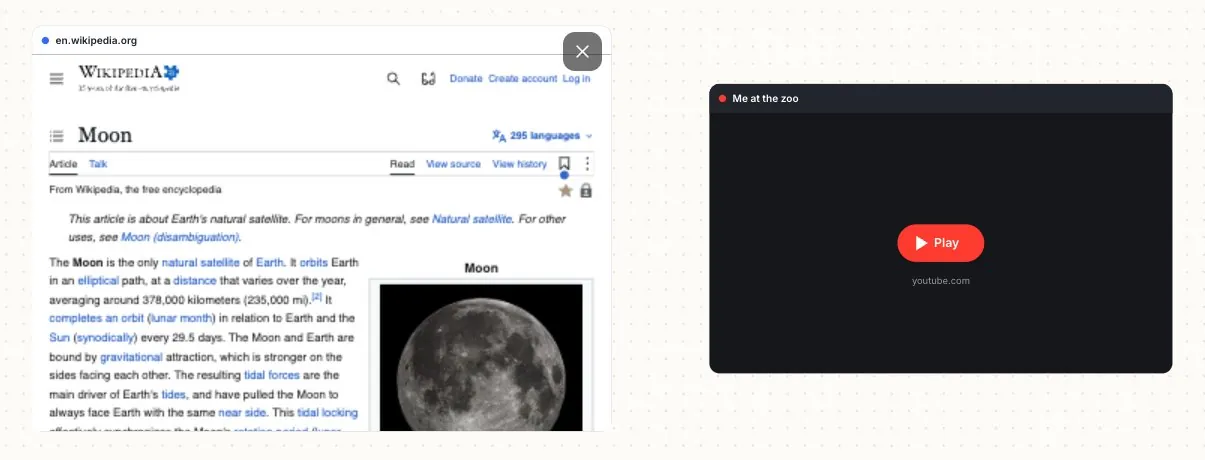
Press Add to board (the plus in a square) and choose Video or website, then paste the link. Or paste a link straight onto the board. It sits next to your notes and drawings: press Play for a video or Open page for a website. Tap its corner once to make it fill the screen, and again to put it back. Some sites don't allow this, and their card opens them in a new tab instead.
Give it its own tab
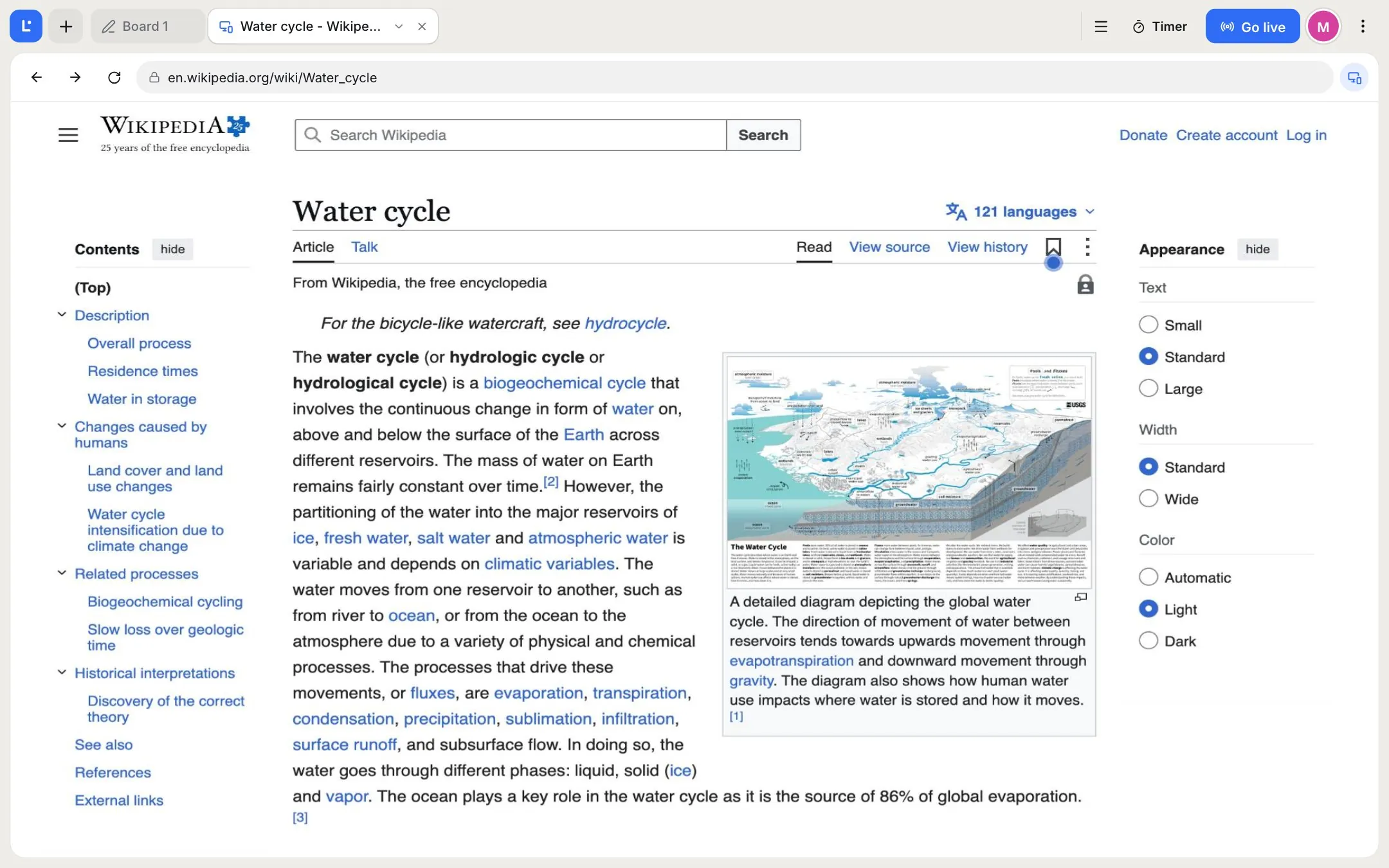
Press + and choose URL, then paste a link. Videos play in step for everyone. Websites open in a shared browser that students can click and scroll.
Your own files
Drop an MP3 or a video file onto the board, or choose Upload a file from Add to board. A sound file becomes a card with Play, ready for a listening task. A video asks where it goes: On this board, or a New tab that plays in step for everyone. Choose several files together for a playlist that plays them in order.
Slow down and repeat
While a sound or video file plays on the board, its card shows 5s to go back five seconds, the speed (1×, 0.75× or 0.5×) and the repeat button (two arrows). Tap it where a part starts and again where it ends, and that part plays again and again until you tap it once more. On a phone these sit under the card. A video, YouTube link or playlist in a tab of its own has the same buttons under it, and they work for everyone: slow it down or repeat a part, and the whole class hears it that way.
A snapshot of a moment
While a video or website plays on the board, press the camera button on its card. That moment appears beside it as a picture to draw on, label or cover. For a YouTube video or a website, your browser asks which tab to share: pick this one.