Connect your tablet
Go live, press the people count at the top and choose Write from an iPad or tablet.
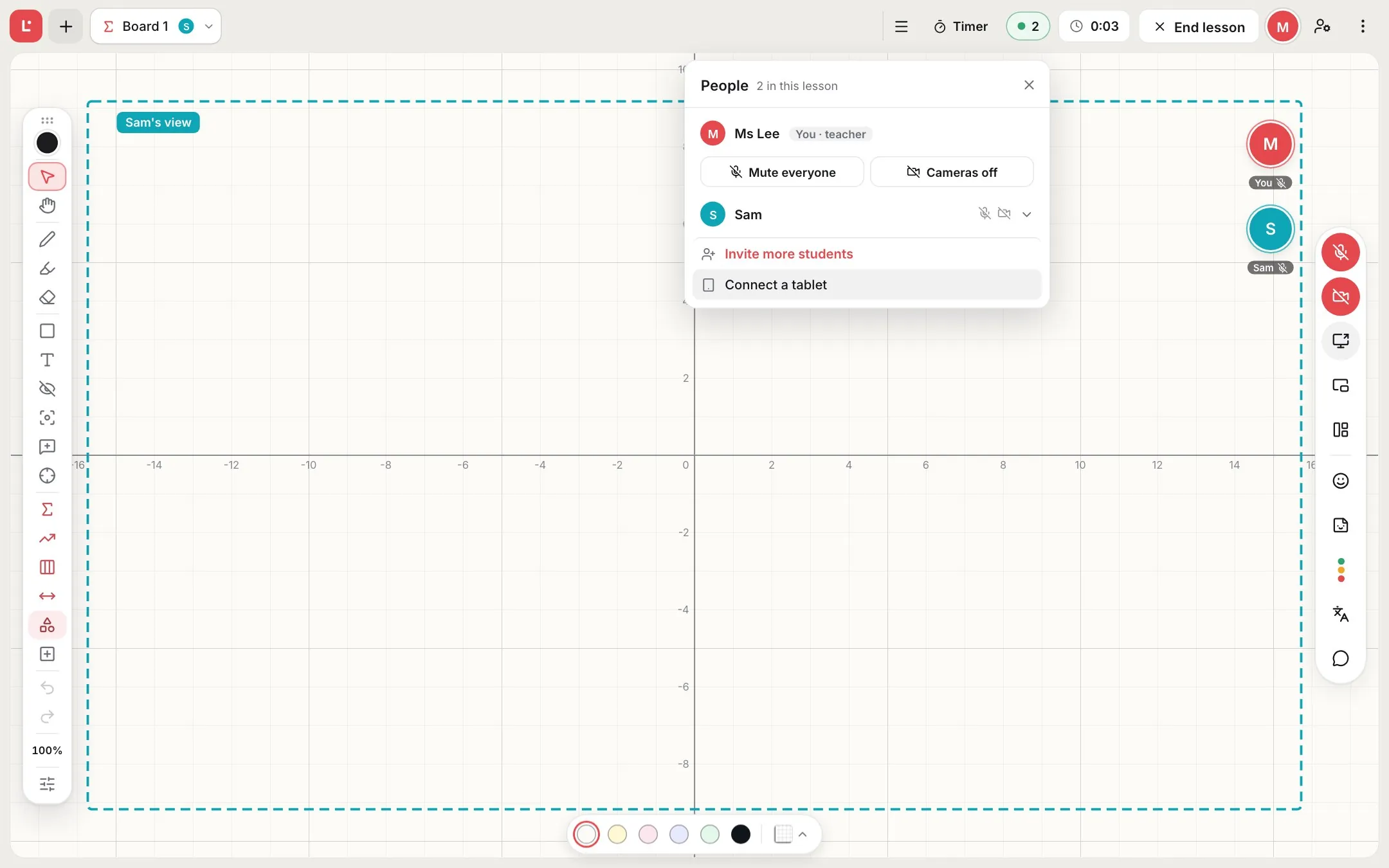
Scan the code
Point your iPad or tablet's camera at the code. The lesson opens on it as your pen: no name to type, no camera or mic, and students do not see it as a person. A phone works too.
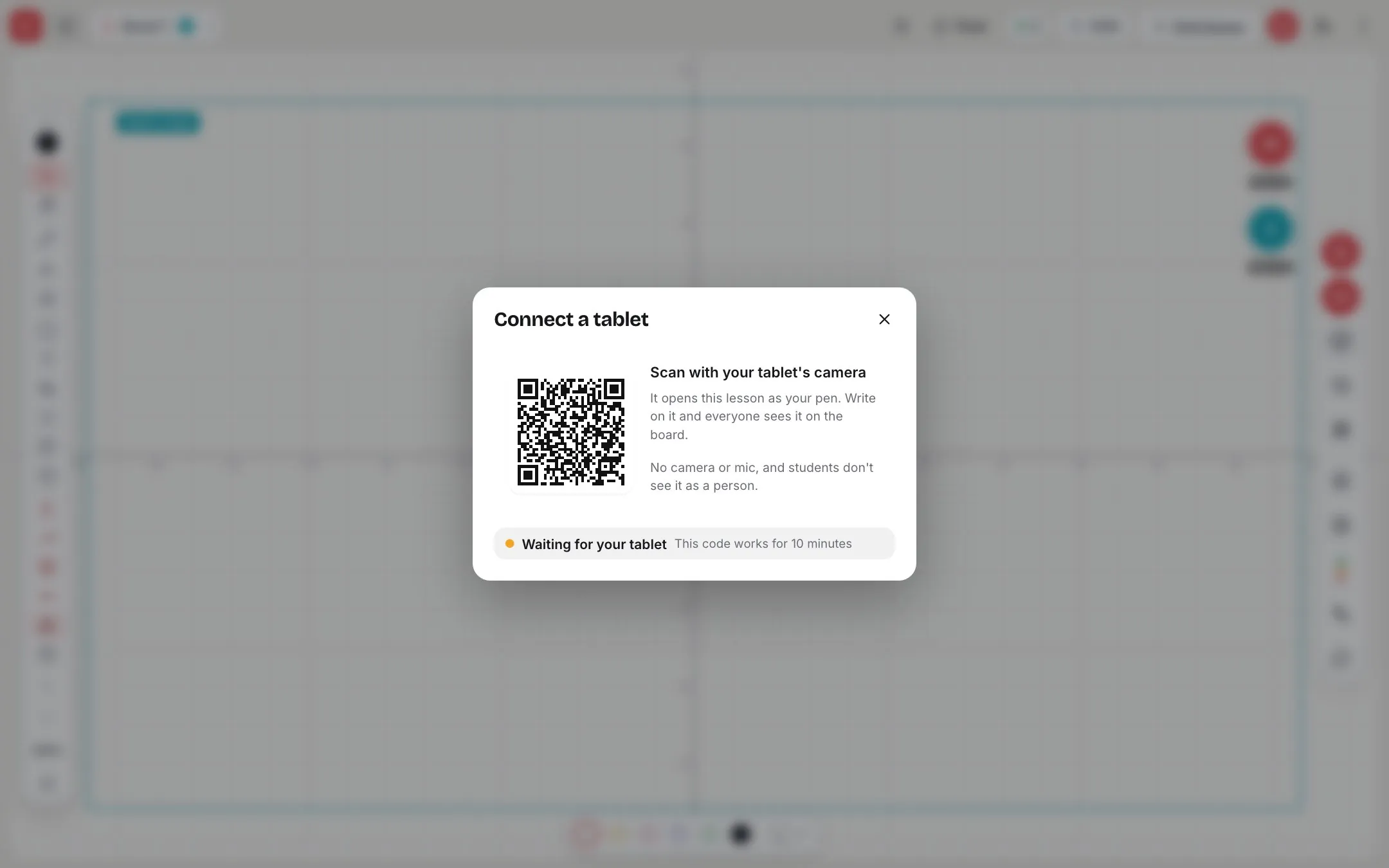
Write
It starts on the pen. With an Apple Pencil or another stylus, the pencil writes and your fingers move and zoom the board, so a hand resting on the screen leaves no marks. The background colours are there too.
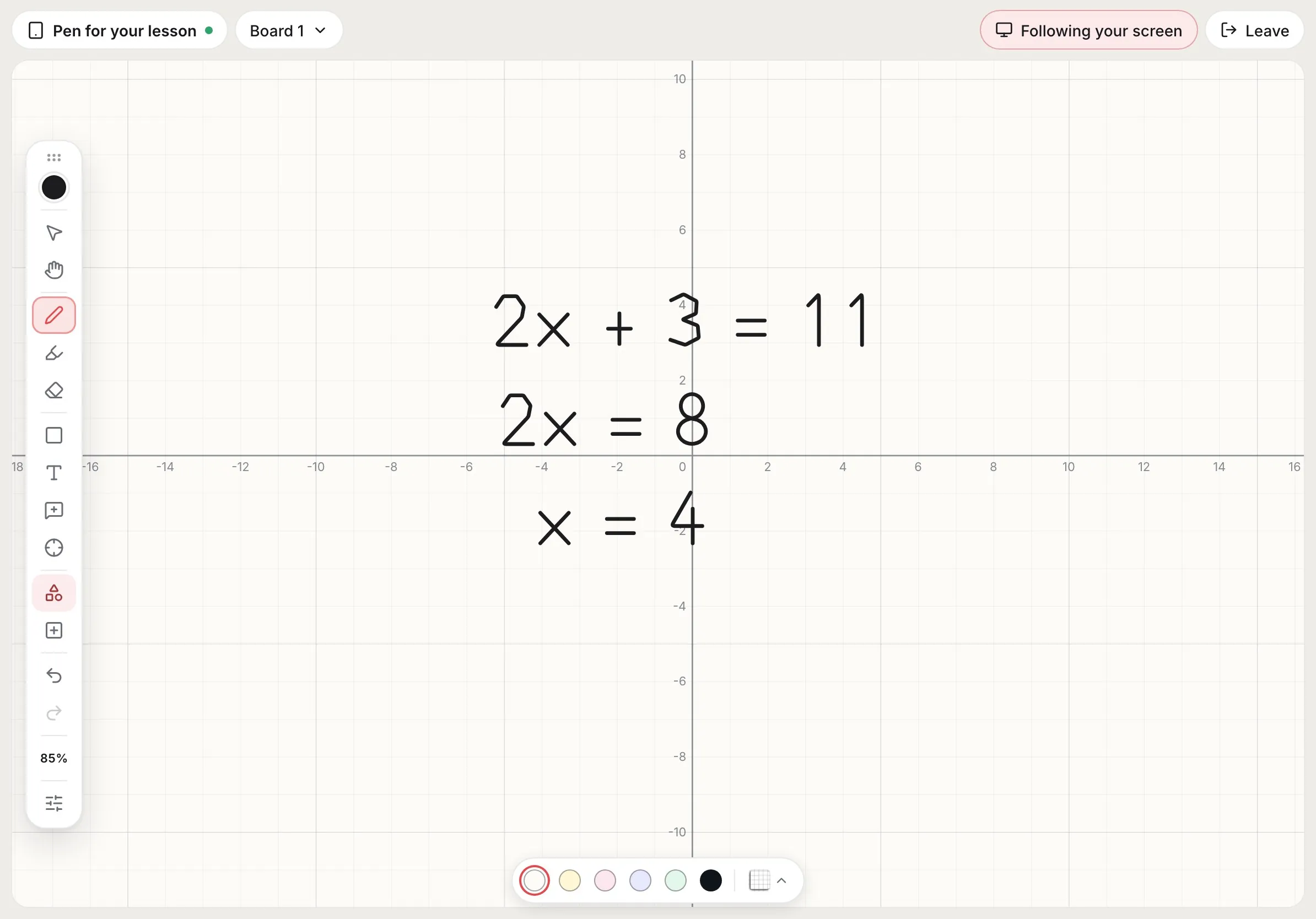
Handwriting to text
In a Doc, write with the Apple Pencil where you would type and the iPad turns your handwriting into typed text, so the class reads neat notes. It turns each word into text a moment after you lift the Pencil; keep writing and it carries on.
Everyone sees it
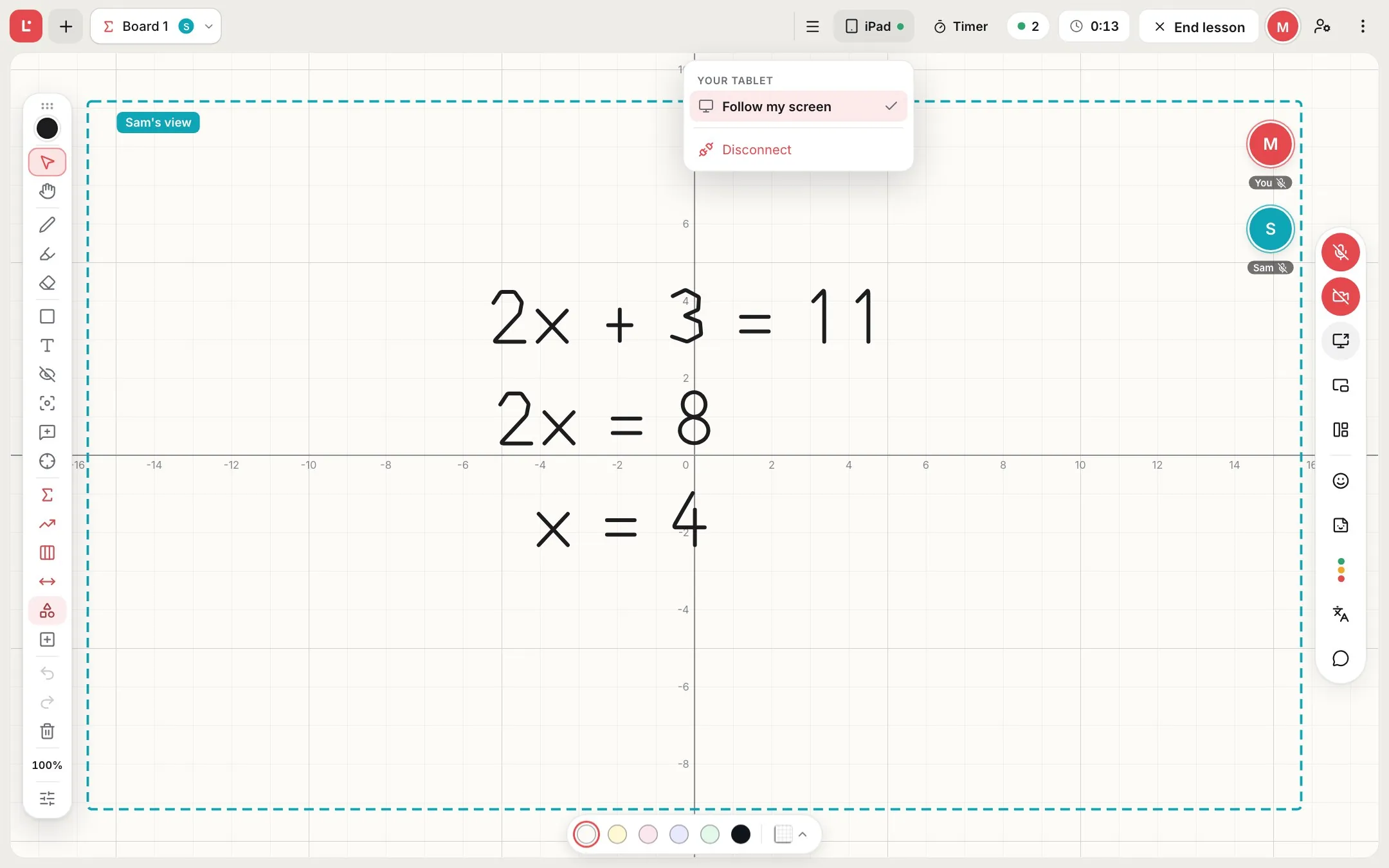
What you write appears on your computer and on every student's screen straight away. A button with the tablet's name sits at the top of your lesson while it is connected.
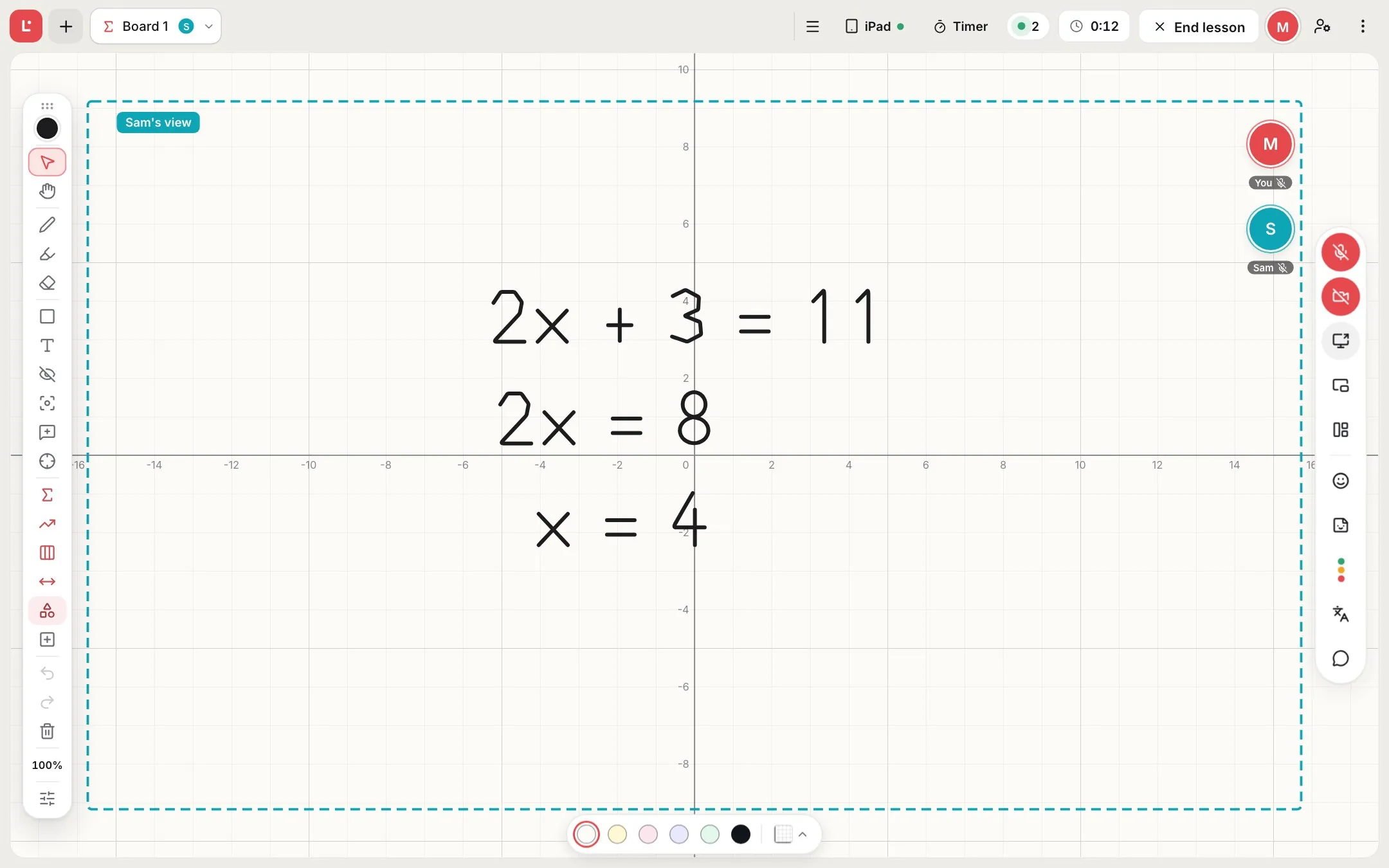
Follow, or look around
The tablet follows the tab and view on your computer, and works the other way too: move the board or pick a tab on the tablet and your computer goes there with it. To look around on the tablet alone, turn off Sync screens on the tablet, or in the tablet's button on your computer.
Your next lessons
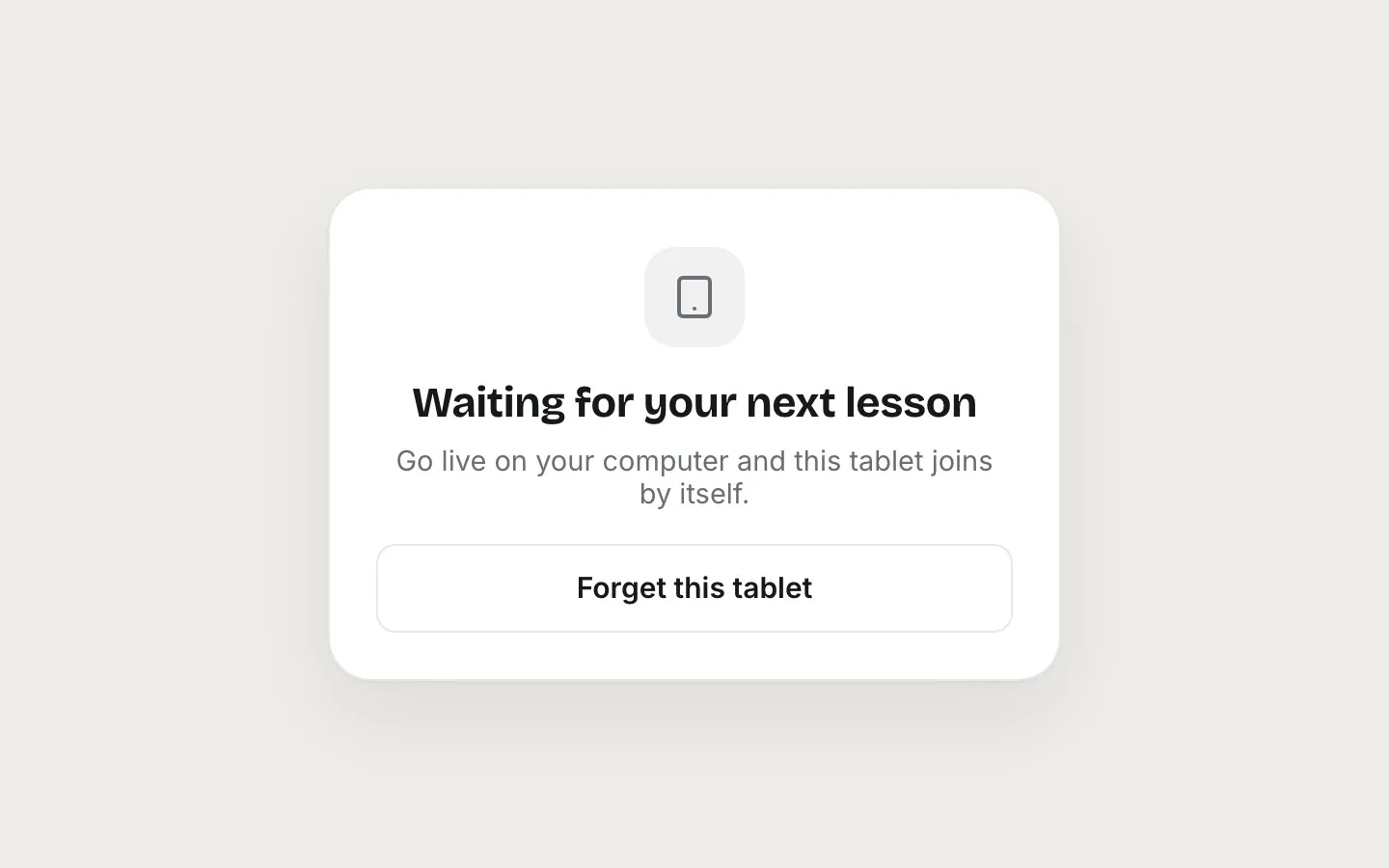
When the lesson ends the tablet waits. Go live in any of your lessons and it joins by itself within a few seconds, in any subject. Closed the page? Open lessonscreen.com/app/tablet on the tablet.
Stop using it
Press Disconnect in the tablet's menu on your computer, Leave on the tablet, or Forget this tablet on its waiting page. To use it again, scan a new code. You need to be signed in for it to remember your tablet, and pairing a new one replaces the old one.